이 안내는 무료 웹 체험판의 PDF 직접 선택과 저장을 기준으로 합니다. 설치형 앱의 기능과 출시 상태는 플랫폼별 안내에서 확인하세요. 보완: 2026.09.29
1. 필요한 부분부터 준비하세요
원본 PDF는 최대 50쪽·30MiB입니다. 10쪽 안팎의 시험지도 이 범위에 포함됩니다. 한도를 넘는 자료는 사용 중인 PDF 도구에서 필요한 부분만 나누어 저장한 뒤 선택하세요. 파일 크기는 내용을 읽기 전에, 쪽 수는 PDF를 읽은 직후 문항 처리 전에 검사합니다.
문제 번호와 그 문제가 있는 PDF 쪽 번호를 미리 적어 두면 찾는 시간이 줄어듭니다. 예: 7번 → PDF 3쪽, 12번 → PDF 5쪽. 종이에 인쇄된 쪽 번호와 PDF 뷰어의 쪽 번호는 다를 수 있습니다. 파일을 나누었다면 나눈 파일의 쪽 번호를 사용하세요.
텍스트가 포함된 디지털 PDF를 사용하세요. 현재 PDF 선택 화면에서는 스캔 전용·암호 보호·회전 문서 및 여러 쪽에 걸친 문제를 지원하지 않습니다. 책 전체를 처리하는 서비스는 아닙니다.
2. 틀린 문제를 고르세요
PDF를 선택하고 전체 문항 수와 틀린 문제 번호를 입력합니다.
해당 문제가 있는 PDF 쪽을 엽니다. 문제 번호만으로 위치를 자동으로 찾아주는 기능은 아닙니다.
드래그하거나 반대편 두 모서리를 눌러 문제의 사각형 영역을 지정합니다.
발문·선지·그림·필요한 공통 지문을 포함한 뒤 ‘경계 적용’을 누릅니다. 요청한 모든 번호를 지정해야 저장할 수 있습니다.
선택한 상자 안에 풀이에 필요한 내용이 모두 들어 있는지 확인하세요. 함께 읽어야 할 지문이 빠졌다면 저장하기 전에 경계를 다시 지정합니다. 한 문제를 여러 쪽에서 이어 붙이는 기능은 이 웹 체험판에서 지원하지 않습니다.
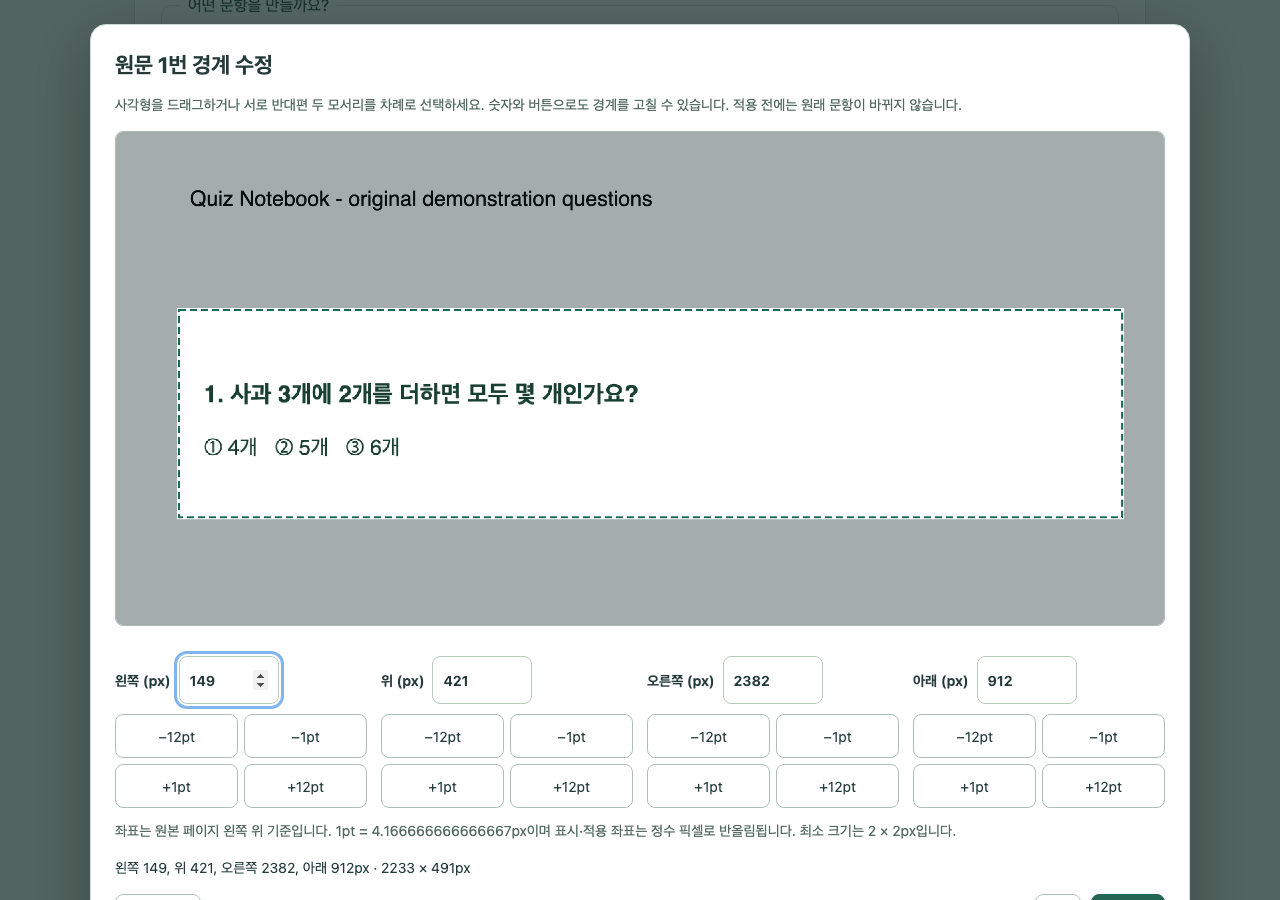
자체 작성 예시 · 실제 웹 체험 화면. 영역을 지정한 뒤 ‘경계 적용’을 누릅니다.
3. 내 필기 방식에 맞춰 만드세요
같은 양식으로 여러 문제를 만들려면 함께 선택하세요. 문항별로 서로 다른 양식을 쓰려면 한 문제씩 지정해 각각 저장하세요. 마지막에 저장된 PDF를 필기앱으로 가져와 정리할 수 있습니다.
저장 버튼을 누른 뒤에도 한 번 확인하세요
요청한 문항의 영역을 모두 적용한 뒤 미리보기를 원본과 비교합니다.
확인란을 누르고 ‘PDF 저장’을 선택합니다. 미리보기만 열어 본 상태는 파일 저장과 다릅니다.
다운로드 폴더나 선택한 저장 위치에서 PDF를 열어 문항 수, 발문·선지·그림, 글씨 크기와 필기 공간을 확인합니다.
확인한 파일을 굿노트 등 사용하는 필기 앱에서 가져옵니다. 가져오기 메뉴와 필기 방식은 앱·버전에 따라 다릅니다.
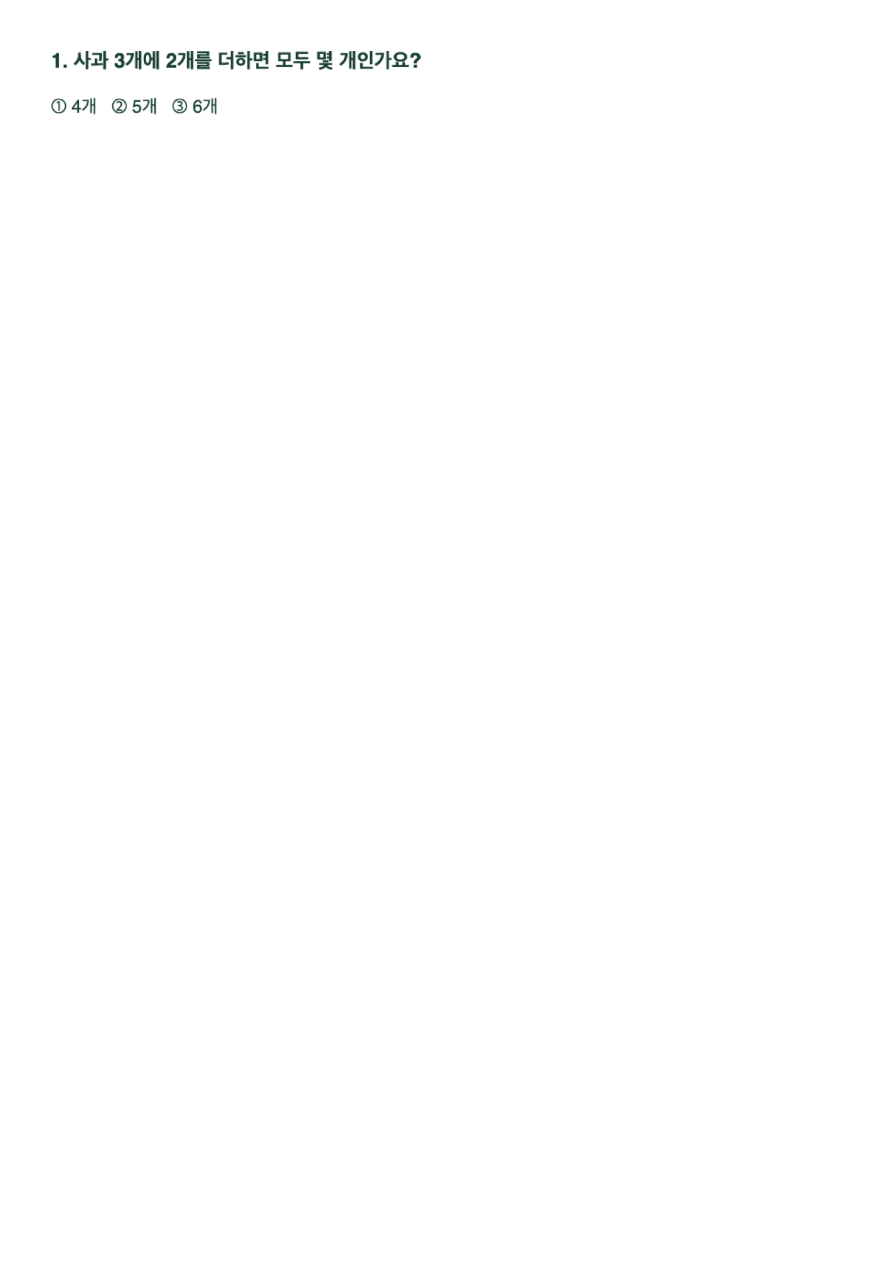
실제 저장한 한 쪽 PDF. 무료 체험은 문제와 백지 필기 공간으로 저장됩니다.
문서 이름보다 문서의 성격을 확인하세요
글자를 선택·복사할 수 있는 PDF
EBS나 사설 자료 모두 이 형태일 수 있습니다. 이 웹 체험판에서는 필요한 문제를 직접 선택합니다. EBS 자료라는 이유만으로 자동 인식의 정확성이 보장되지는 않습니다.
스캔·사진으로 만든 PDF
글자와 번호가 이미지로만 들어 있으면 자동 위치 찾기가 어려울 수 있습니다. 현재 웹 체험판은 스캔 전용 PDF를 지원하지 않습니다. 사진·스캔 입력을 지원하는 설치형 앱과 버전을 확인하세요.
공통 지문·복잡한 배치
문제 번호만으로 충분한 범위가 정해지지 않을 수 있습니다. 필요한 지문·선지·그림을 원본과 비교해 포함하세요. 여러 쪽에 걸친 문항 등 지원 제한도 먼저 확인합니다.
번호로 영역을 제안하는 기능은 해당 기능을 제공하는 앱·버전에서만 이용할 수 있습니다. 이번 안내와 영상은 웹 체험판의 직접 선택·저장을 보여줍니다.
로그인 없이 한 번에 최대 2문제를 만들 수 있고, 반복 이용할 수 있습니다. 템플릿 설정과 미리보기를 볼 수 있지만 무료로 저장한 PDF에는 문제와 백지 필기 공간만 들어갑니다. 줄·오답 분석 칸 등 템플릿을 포함한 저장은 유료 앱 기능입니다. 워터마크를 넣지 않습니다.
체험은 A4 세로·한 문제 한 쪽입니다. 사진 입력·합본 등 유료 앱의 모든 기능을 실행하는 체험판은 아닙니다. 여기서 체험해도 구독이나 결제가 시작되지 않습니다. 플랫폼별 출시·구입 안내는 공식 앱 소개에서 확인하세요.
내 자료는 어디로 가나요?
시험지·사진·잘라낸 문항·완성 PDF는 이 기기 안에서 처리합니다. 원본 파일은 바꾸지 않습니다. 창을 닫기 전에 결과를 저장하세요. 임시 작업은 자동 복구되지 않습니다. 사용할 권한이 있는 자료를 선택하세요.
Make study PDFs for your note app
Spend less time photographing, cropping and moving questions, and more time practising.
This guide covers manual PDF selection and saving in the free web demo. Check platform information for installed apps and release status. Updated: 2026-09-29
1. Prepare the pages you need
Each source PDF is limited to 50 pages and 30MiB. A ten-page exam fits within this limit. For larger documents, use your PDF tool to save the relevant pages as smaller files before selecting them. File size is checked before reading the contents; page count is checked after parsing, before question processing.
Note each question number and its PDF page number before you start: for example, question 7 → PDF page 3; question 12 → PDF page 5. Printed page numbers may differ from the PDF viewer’s page numbers. If you split a file, use page numbers from the new file.
Use a digital PDF containing text. The PDF workspace does not currently support scan-only, encrypted or rotated documents, or a question spanning multiple pages. It is not a whole-book processing service.
2. Select the questions you missed
Choose a PDF and enter the total number of questions and the original question numbers you need.
Open the PDF page containing the question. Entering a number does not automatically find its position.
Drag a rectangle or tap two opposite corners to select the question.
Include the question, choices, figures and any shared passage, then select Apply boundary. Every requested number needs a region before you can save.
Keep everything needed to answer the question inside the rectangle. Adjust the boundary before saving if a shared passage is missing. This web demo does not join parts of one question across multiple source pages.
Self-authored sample in the web demo. Select the region, then choose Apply boundary. Screenshot shown in Korean.
3. Match your way of taking notes
Select several questions together to apply one common layout. For a different layout per question, select and save one question at a time. Import your PDFs into your handwriting app to organise them.
Check the file after saving
Apply a region for every requested question and compare each preview with the original.
Select the confirmation checkbox, then Save PDF. Opening a preview alone does not save a file.
Open the PDF in Downloads or your chosen save location. Check the question count, question text, choices, figures, text size and writing space.
Import the checked file into Goodnotes or your preferred note app. Import menus and handwriting vary by app and version.
Actual saved single-page PDF. Free exports contain questions and blank writing space. Sample shown in Korean.
Check the document, not just its publisher
PDFs with selectable, copyable text
Both EBS and private publishers may provide this format. Select question regions manually in this web demo. A publisher's name alone does not guarantee accurate automatic recognition.
Scans and photo-based PDFs
When letters and numbers exist only as images, automatically finding question boundaries can be harder. This web demo does not support image-only scans. Check installed-app versions for photo or scan support.
Shared passages and complex layouts
A question number may not identify all the content you need. Include the passage, choices and figures by comparing with the original. Check limits such as questions spread over multiple pages.
Automatic region suggestions are available only in app versions that provide them. This guide and video show manual selection and saving in the web demo.
See the steps in a 28-second video
Captioned instructions show actual selection screens and the saved PDF using a self-authored sample. The current video is in Korean.
No login is needed. Make up to two questions per PDF, as often as you like. You can explore templates and their previews, but the free saved PDF contains only your questions and blank writing space. Saving rules or study templates is a paid app feature. No watermark is added.
The demo uses A4 portrait, one page per question. It does not run every paid feature, such as photo input or PDF combining. Trying this page does not start a subscription or payment. See official app information for platform availability and purchases.
Where do my documents go?
Source PDFs, photos, cropped questions and completed PDFs are processed on this device. Originals are unchanged. Save before closing the page: temporary work is not automatically restored. Use materials you have permission to use.