 Quiz Notebook
Goodnotes ↗
Goodnotes documents handwritten math conversion and sharing as LaTeX or an image on supported devices.
Study tools for your note-taking workflow
Keep writing in the app you know. Practise with Quiz Notebook and collect questions to solve again in a PDF with Wrongnote Maker.
These workflows use exported files and copy-and-paste. They do not link accounts or automatically sync the apps.
Organise questions in Wrongnote Maker. Work through them with your pen in your usual note app.
Goodnotes: import the PDF as a new document, or add its pages to an existing notebook.
Official import guide ↗MyScript Notes: choose Import as PDF from Create on iOS or + on Android.
Official PDF guide ↗The questions become PDF page content with space to write over. Importing does not turn the original question text or equations back into editable objects.
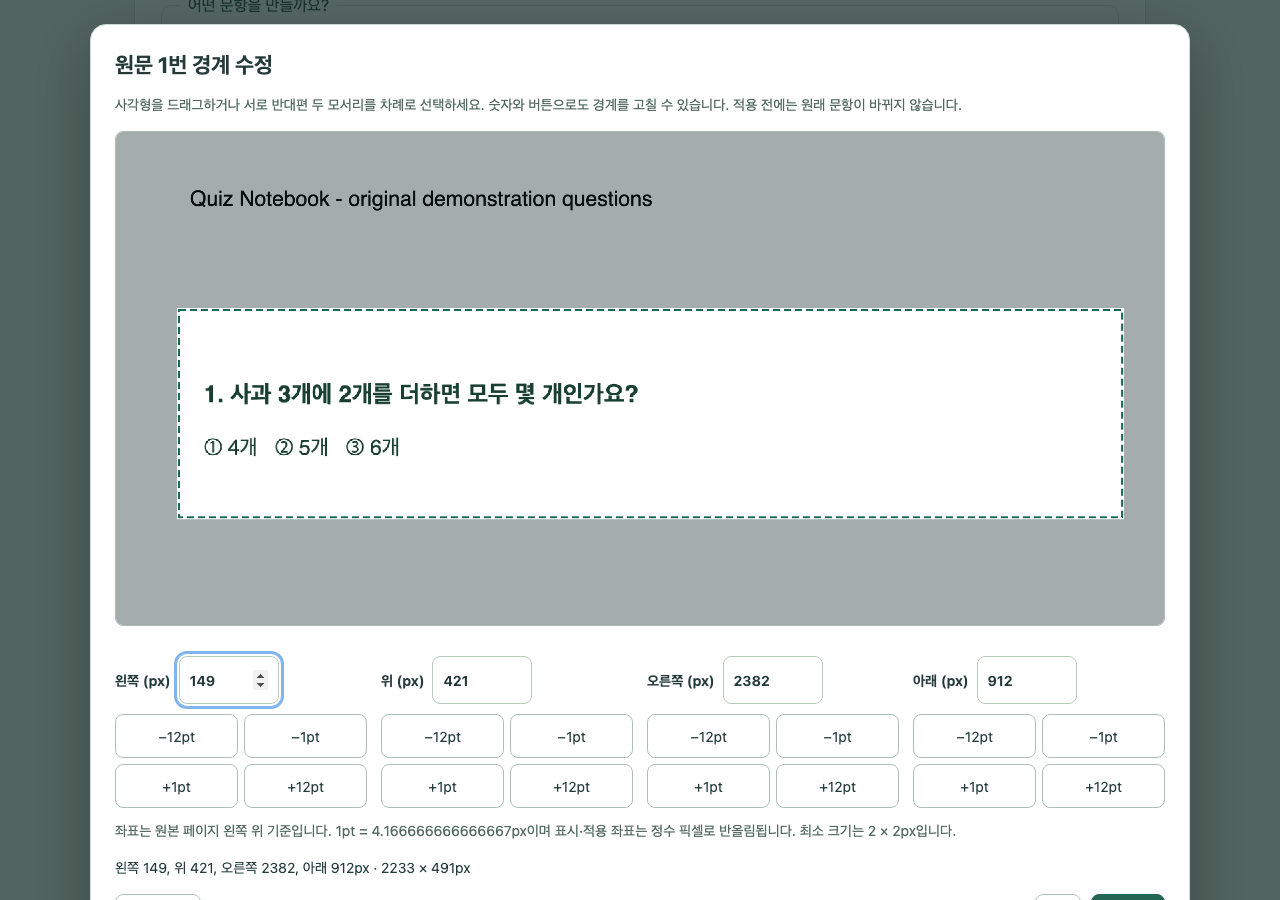

Self-authored sample · Actual Wrongnote Maker web demo and saved output
Try the web demo without signing in →
The web demo saves up to two questions at a time, one per page. It uses manual selection from digital PDFs and does not include every paid-app feature or scan/photo input. Full saving guide →
Notability · 2026-10-05
After writing your solutions in Notability on a question PDF made with Wrongnote Maker, save a separate solved copy for your next review.
Saving a PDF copy does not require a public link or a Gallery post. Reimporting a file does not automatically sync it with Quiz Notebook.
Review example: keep retry-01.pdf as your blank question sheet and retry-01-solved.pdf as your worked copy. Start from the blank sheet when trying again.
Based on official iPad documentation. Menus may differ by device and version. A file-transfer test on a physical device with Notability has not yet been performed.
Official Notability export guide ↗ · Official menu guide ↗ · Make a question PDF
MyScript Notes · 2026-10-04
After writing solutions on a PDF made with Quiz Notebook Wrongnote Maker, select the pages you want to study again in MyScript Notes and save a separate review copy.
Excluding annotations affects annotations added in MyScript Notes. It does not remove answers or handwriting already embedded in the original PDF or photo, or flattened earlier. Use the unmarked original in that case.
Example: if you retry pages 3 and 7 but their shared passage is on page 2, include page 2 too. You select pages manually; this does not identify incorrect answers automatically.
Checked against official documentation and Quiz Notebook PDF-saving code on 2026-10-04. File transfer and another solving session on a MyScript Notes device have not been tested. Menus may vary by device and version.
English · Goodnotes
Detailed Goodnotes menus here are for iPad. On Android, Windows and web, look for Export as PDF. Labels vary by device and version.
A workflow explanation checked against official documentation. It is not a recording of operating these apps or a completed device-to-device transfer test.
Official guides: PDF export ↗ · Annotations and background ↗ · Editable / Flattened ↗
Choose questions and answers from converted text, then add them to Quiz Notebook.
Use Goodnotes handwriting conversion or the text export available for MyScript Notes documents. Digital pen strokes and photographs of handwritten paper have different recognition limits. The Goodnotes conversion instructions here refer to its iPad guidance.
To adjust to new conditions | adapt | adopt | affect | effect
To choose and start using | adopt | adapt | affect | effect
To influence something | affect | adapt | adopt | effect
A result or consequence | effect | adapt | adopt | affect
Copy this prompt and material you can provide into your chosen AI. Review the suggestions and paste only the questions you accept into the app.
Your AI is an external service. Your own account, fees and usage limits apply; AI usage is not included with Quiz Notebook. This page does not send your material to an AI.
Suggest 10 revision question-and-answer candidates from the study material below.
Do not invent facts absent from the material. Flag uncertain answers or proposed corrections separately. First show a table with candidate number, question, answer, source location and difficulty.
After I choose the candidate numbers, output only those items in this format, one per line, without headings, numbering, explanations or code fences:
Question | Correct answer | Wrong answer 1 | Wrong answer 2 | Wrong answer 3
Avoid duplicate answers. Use plausible distractors from the same category. If you cannot supply reliable distractors, output Question | Correct answer only. Do not put a vertical bar or line break within a field.
Study material: [Paste material I am permitted to provide here]
English · MyScript Notes
These are the main study formats. See the official guide for every format, including .nebo for keeping an original copy.
A workflow explanation checked against official documentation. It is not a recording of operating these apps or a completed device-to-device transfer test.
Official guides: Export formats ↗ · Note types ↗ · Convert handwriting ↗
Work through problems in Goodnotes or MyScript Notes, then collect the parts you want to practise again in Quiz Notebook. Choose review questions from the work you have already done.
Goodnotes documents handwritten math conversion and sharing as LaTeX or an image on supported devices.
MyScript Notes, formerly Nebo, converts handwriting to text and lets you copy math objects as images or LaTeX.
Write your solution and explanation. Choose a formula or a step you want to revisit.
Export an image to preserve the equation’s appearance. Organize converted text into questions and answers; keep LaTeX as editable source.
Import the image into Quiz Notebook’s Image Hide and cover the answer or a key step. For text, create a set with Question | Answer lines and review with flashcards or quizzes.
Front: Which two numbers are needed to factor x² − 5x + 6?
Back: Sum −5 and product 6: −2 and −3 → (x − 2)(x − 3)
Here −2 and −3 are the constants added inside (x − 2)(x − 3). If the question asks you to solve x² − 5x + 6 = 0, the solutions are x = 2 or x = 3.
Check signs, brackets, fractions and exponents against your original work. Confirm LaTeX display support in your Quiz Notebook version; use an image to preserve the exact appearance.
This workflow uses files you export and import yourself. Features, menus and terms vary by app version, device and plan. Check for the math conversion menu first. Recognition results are not automatically graded as correct.
Import text from Evernote ENEX, prepare a prompt for your own AI, review its suggested questions and save only those you accept. Open “Create my own deck → Make a deck with my AI” in the latest Windows app.
The AI workbench is currently in Korean. ENEX import reads text only; it does not OCR images, scans or attachments. Mac and dedicated tablet update candidates include the workflow; this does not establish support in phone store releases.
Your external AI account and fees apply. Material is not sent automatically. Use generated material for personal study and check copyright before publishing.
Evernote · ENEX ↗VOICE → TEXT → QUIZ NOTEBOOK
Dictate or paste text from Evernote or another app, check sentences and numbers, then save as .txt. Import it as source material in PRO’s AI deck workbench, or write questions and answers using “Connect to a deck” below.
The Mac direct-download edition is MacWhisper; the Mac App Store, iPhone and iPad editions are called Whisper Transcription. No official Android or Windows version is listed.
MacWhisper / Whisper Transcription ↗ · Mac / iPhone / iPad ↗Just Press Record is a recording app for Mac, iPhone, iPad and Apple Watch. Watch recordings transfer to iPhone for transcription. Share or copy the transcript and paste it here. No official Android or Windows version is listed.
Just Press Record ↗NAVER CLOVA Note is available on the web for PC, Android and iOS. Upload a recording to transcribe it, then use Download → Download transcript. Review the text, then copy and paste it into your note. Online processing is required. Check the official site for supported languages, regions and pricing.
NAVER CLOVA Note ↗ · CLOVA Note Help ↗For existing recordings, use MacWhisper on Mac or another transcription app, export as .txt, then import it here. This screen does not transcribe audio files.
Tap the text field and use your device keyboard’s microphone or dictation. Language support and online processing depend on the device. This note does not itself record or send audio.
Saves only the title and entered text. Handwriting, photos and PDF backgrounds are not converted to text. Each note holds up to 4,000 characters. Split longer text or import the original TXT directly into PRO’s AI deck workbench.
Simple notes →Add quiz practice to the note app you already use. Turn selected material into study decks. Collect questions in a revision PDF and review them in a note app that supports PDF annotation.
Individual guides and short videos for Notability, Noteshelf 3, Obsidian and Ulysses.
Choose questions in Wrongnote Maker, then write your working and corrections in the Notability notebook you already use.
Import a revision PDF into Notability →Bring a PDF of questions you want to revisit into your usual notebook, then work through each answer with your pen.
Revise with your PDF in Noteshelf 3 →Choose today’s study material from Obsidian, ask your own AI for question candidates, and practise only the questions you accept in Quiz Notebook.
Turn Obsidian study notes into quiz material →Export the writing you want to revise, ask your own AI for question candidates, and practise your selections in Quiz Notebook.
Use Ulysses summaries as quiz material →These clips explain workflows; they are not demonstrations of operating third-party apps. The ENEX clip is labelled as a development preview.
See the current app page for installed Wrongnote Maker platforms and Quiz Notebook availability. Tablet-only builds and developing features are not described as released. Goodnotes and MyScript Notes capabilities and terms also vary by device and version.