Quiz Notebook

English revision · 6 October 2026

Quiz Notebook Pro · Windows · English

18 chapters · 124 exercises · learner and teacher examples

Download PDF · 162 pages
PDF 1

01 · From notes to study cards

Write a note, turn the points you need into cards, and practise recalling the answers.

About this revision

This guide covers Simple notes, PDF and TXT files, external note and voice tools, decks and backups. Each procedure tells you what to click and what to check afterward.

Start here

Homepage: https://quiznotebook.com/ko/
The Korean homepage has a feature finder and a Simple notes shortcut. You can also open notes directly and choose English in the language selector.
Notes: https://quiznotebook.com/webapp/notes/?lang=en
Study room: https://quiznotebook.com/webapp/

Where to begin

Try the short exercise on page 3. For handwriting, start on pages 5–6; for PDFs, pages 8–10; for text and voice, pages 11–12; and for cards and AI-assisted decks, pages 13–15.

Scope and date

Revised against the web implementation and public guidance checked on 6 October 2026. The Windows and Mac editions each continue with 124 detailed exercises after this new features guide. Available menus depend on the version you have installed.

PDF 2

02 · Where can I use these features?

A feature described in a manual may not yet be available in every store version.

Public web app

The public Simple notes interface supports pens, a highlighter, an eraser, PDF and TXT import/export, and cards made from notes. Notes stay in this browser on this device.

Windows, Mac, iPad and Android tablet Pro

The note feature has been integrated into candidate source builds for these four platforms. Full testing of the new installers on real devices and store distribution were not complete at the time of this revision. If your installed app has no note menu, use the public web app.

The existing personal-AI workbench

The ENEX/text workflow in versions with the personal-AI workbench is separate from the new Simple notes feature. Check your installed version for availability. The Pro candidate adds note entry buttons to Home, Create and My Sets.

What this guide does not verify

This update does not add the note feature to the standard phone edition. Browser checks do not establish that Apple Pencil, S Pen or every device’s file picker has been tested.

PDF 3

03 · First five minutes: one note, one card

A deck is a collection of study questions and answers.

  1. In Simple notes, select “+ New note”. Enter “Water review” in Title.
  2. In Text, enter “The chemical formula of water is H2O.” Select Save below the paper and look for Saved.
  3. Expand Connect to a deck. Select Create a new deck and enter “Science review” as the Deck name.
  4. Set Front: question to “What is the chemical formula of water?” and Back: answer to “H2O”. Check the fields even if the note title and text were filled in automatically.
  5. Read and select the permission checkbox, then select Save as card.
  6. Select Open deck to open it in the study room. Try to recall the answer before revealing it.
  7. Return to the note, select Back up note, and check that the file was actually saved.

Check your result

Confirm the note title is “Water review”, the deck is “Science review”, the question asks for the formula of water, and the answer is “H2O”.

PDF 4

04 · Find your way around the screen

The text fields, paper area and Save button have different roles.

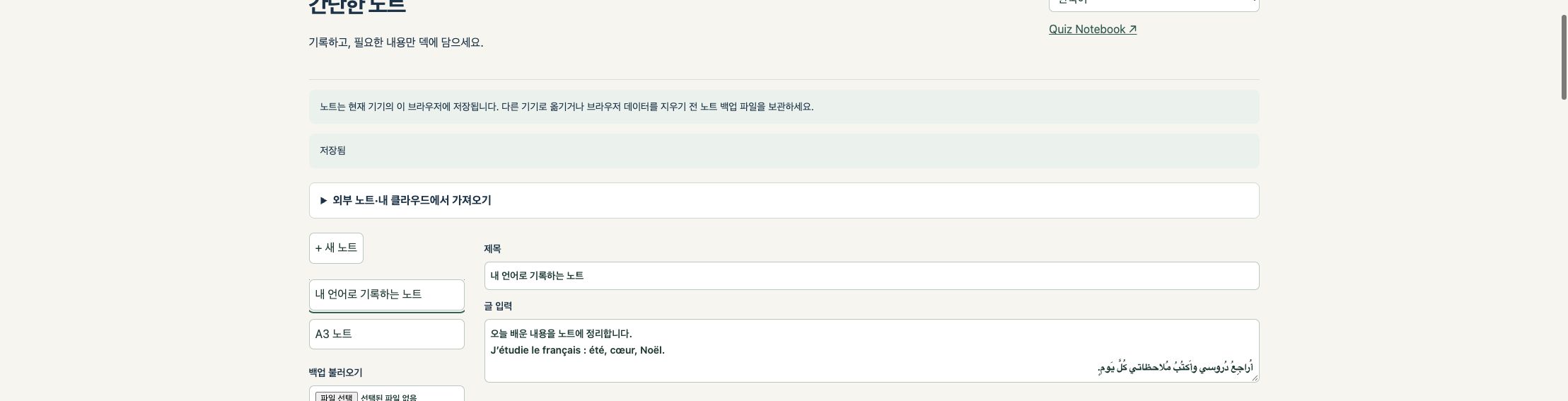
Actual Simple Notes interface
Actual public web interface with original multilingual sample text; not a screenshot of a native app on a device. This screenshot uses Korean. Button labels may differ with your selected language and app version.

Top and left

Below the language selector is guidance on importing from other note apps. On the left you can create a note, open saved notes, restore a backup or import a PDF. Collapse the guidance to make more room for the tools.

Centre and bottom

Below Title and Text are the TXT controls and the pen/paper tools. Scroll below the paper to find Save, Download PDF, Back up note and Connect to a deck.

Return to your study room

Select Quiz Notebook ↗ at the top of web notes. Immediately after saving a card, Open deck takes you to its deck. Save your note before leaving.

PDF 5

05 · Choose paper size and line spacing

Choose your paper before writing. Hide the guide lines when you no longer need them.

  1. For a new note, choose A4, A3 or Letter under Paper. A4 is the default.
  2. Enable Show lines and set Line spacing (mm). The range is 4–20 mm, in 0.5 mm steps.
  3. Write along the guide lines. Turn off Show lines when you want to hide them.
  4. Select Save. PDFs and card images use the current line visibility, so check it before exporting.

Actual paper dimensions

A4: 210 × 297 mm. A3: 297 × 420 mm. Letter: 215.9 × 279.4 mm. On-screen dimensions depend on zoom and display size. Use 100% scale when checking a printout.

Why the paper size may be locked

Once you add pen strokes, a photo or a PDF, the size is fixed. Create a new note first if you need a different size. Hiding the lines does not erase your writing.

PDF 6

06 · Pens, highlighter, eraser and photos

Use a small set of tools for simple annotations.

Pen colour and thickness

Choose Pen, then Thin, Medium or Thick. The colours are black, red, blue, green and yellow. Pen pressure does not change the stroke width.

Highlighter, Eraser and Undo

Highlighter makes a translucent yellow stroke of a fixed width. The five colours and three widths apply to Pen. Eraser removes strokes added in this note; Undo reverses the last drawing action. The eraser does not remove a PDF background or photo. Edit typed text in the Text field.

Attach a photo

Select Attach photo and choose one JPG, PNG or WebP file, no larger than 15 MB and 50 million pixels (50 MP). The image is resized on your device when stored in a note. Keep the original separately. Adding a different photo replaces the current one, so save a backup first.

For advanced handwriting

Use your preferred note app for handwriting recognition, formula conversion or more brushes, then import a PDF or text. Simple notes does not convert handwriting to text or LaTeX.

PDF 7

07 · Save versus Back up note

Save keeps your note in this browser. A backup is a separate file you keep.

  1. After writing, select Save and check for Saved. Do not close the page while it shows unsaved changes.
  2. Before changing devices or clearing browser data, select Back up note.
  3. Find the .qn-note.json file in your Files app or Downloads folder.
  4. On the destination device, open Simple notes, select Restore backup, and choose the file.
  5. Compare the restored title, text, strokes, photo, PDF background and line settings with the original. Keep the original device copy and backup until you finish checking.

What does one backup contain?

Back up note saves only the selected note. It is not a backup of every note or of your study-room decks. Keep a file for each important note. Backups contain the actual note material: avoid public folders and shared links.

What “on this device” means

A different browser or browser profile on the same computer may have a different note library. Private browsing, clearing browser data or resetting the device can remove stored data. Save a backup file first.

PDF 8

08 · Export your finished note as a PDF

Keep a PDF for viewing or printing and a note backup for later editing.

  1. Check the title, text, photo and handwriting. Turn off Show lines if you do not want guide lines.
  2. Select Save, then Download PDF.
  3. Open the saved PDF in another viewer. Check characters, images, handwriting and paper size.
  4. Also select Back up note if you want to edit individual strokes later.

Where do typed text and handwriting appear?

The title and typed body appear first as text pages in the PDF. If the note has strokes, a photo or a PDF background, the paper area follows on a separate page. Typed text is not automatically overlaid on handwriting. Long text can span several pages.

What quality is preserved?

When an imported PDF background is exported again, resources from its original page—including text, vectors and images—are included. Newly typed text, strokes and photos are rendered into the output, so not every element becomes an editable vector.

Keep originals

Photos may be resized, and a PDF background may be scaled to fit the chosen paper. The result is not byte-for-byte identical to the original. Keep original PDFs, photos and editable note backups separately.

PDF 9

09 · Use a PDF as a fixed background

Export your first set of notes to PDF, import it again, and add a second layer of writing.

  1. Select Import PDF and choose your file.
  2. Choose the required Page and paper size, then select Import as note.
  3. Check that the original content is visible as a fixed background, then add pen strokes.
  4. The eraser removes only strokes added in this note. Writing already included in the PDF background remains.
  5. Save the first PDF, current note backup and second PDF under separate names.

Import limits

The PDF must be no larger than 20 MB and contain no more than 1,000 pages. Select one page to import. Multiple pages are not automatically combined into one note. Encrypted, damaged or unsupported PDFs may not open.

PDF annotations

The importer currently rejects PDFs that retain annotations, to avoid silently losing them. In your original note app, export a flattened PDF with handwriting and backgrounds included, then import that copy. You can export only the pages you need.

PDF 10

10 · Other note apps and your own cloud storage

Choose files yourself and keep backups in a location you control.

  1. Export the required notes from Goodnotes, MyScript Notes, OneNote or Evernote as PDF. Check that writing and backgrounds are included.
  2. Use Import PDF in Quiz Notebook and select a file and page. You can add new writing over the PDF; individual strokes from the original app cannot be edited.
  3. Store .qn-note.json backups in Google Drive, iCloud Drive, OneDrive or Dropbox. If your browser saves directly to Downloads, move the file to your cloud folder afterward.
  4. On another device, download or select the cloud file and open it with Restore backup. Available cloud locations depend on installed apps and device settings.

Convert app-specific files first

The importer does not open .one, .goodnotes or .nebo files as editable native notebooks. Use PDF to preserve appearance, TXT for typed text, and .qn-note.json to resume editing a Quiz Notebook note.

No automatic note sync

These notes are not uploaded to our server or automatically synced. To use your own cloud storage, save and select the files yourself. Signing in on another device does not make the notes appear there.

PDF 11

11 · Save text as TXT and import it again

Edit a transcript or copied passage into text you can use for study cards.

  1. Type or paste into Text. Check sentences, numbers and symbols.
  2. Select Save text as .txt. The UTF-8 file contains the title and typed body.
  3. Select Import text file and choose a .txt file. It opens as a new note without overwriting the current one.
  4. The file name becomes the note title, and the full file text becomes the body. If you reimport an exported note, its old title may also appear at the beginning of the body; edit it as needed.
  5. Use Connect to a deck to separate questions and answers, or use the TXT as source material in the Pro personal-AI workbench.

Text limits

The note body is limited to 4,000 characters. An imported TXT must be UTF-8, no larger than 20,000 bytes, and contain no more than 4,000 characters in total. If the exported title and body together exceed the limit, split the text before importing.

What TXT does not contain

Handwriting, photos and PDF backgrounds are not converted to text. TXT import does not perform OCR or generate questions. Split a long transcript, or use its original TXT directly in the Pro AI workbench.

PDF 12

12 · Turn speech into text

Use device dictation for live input and a separate transcription tool for recordings.

Dictate into a note

Focus the Text field and use the microphone or dictation on your device keyboard. Correct numbers, names, formulas and negations, then save as TXT. Simple notes does not itself record or send audio.

Existing recordings

Simple notes does not directly transcribe .m4a, .mp3 or other audio files. Use MacWhisper, Just Press Record or Clova Note, then copy the transcript or export text for a TXT file.

Companion tools

MacWhisper is the directly distributed Mac app. Its Mac App Store and iPhone/iPad versions are named Whisper Transcription. Just Press Record runs on Mac, iPhone, iPad and Apple Watch; Watch recordings transfer to iPhone for transcription. Clova Note offers PC web, Android and iOS access.

Languages and costs

An interface in 11 languages does not guarantee speech recognition in all 11 languages by an external tool. Check each service’s language support, pricing and online processing. External accounts and fees are not included in a Quiz Notebook purchase.

PDF 13

13 · Turn a note into a study card

Keep the deck name, question and answer in their respective fields.

  1. Save your note, then expand Connect to a deck below the paper.
  2. On the web, choose a new or existing deck. The Pro update candidate currently offers a new-deck path for notes.
  3. Enter a Deck name such as “Science review”, a Front: question such as “What is the chemical formula of water?”, and a Back: answer such as “H2O”.
  4. If the note includes handwriting, a photo or a PDF background, its image is added to the question side. Handwriting is not automatically recognised as text.
  5. Read and select the permission checkbox, then select Save as card. When “Card saved to your deck.” appears, select Open deck.

The card and the original

The original note remains. Later changes to the note do not automatically change an already saved card. Check and edit that card separately.

Deck sync and image size

If you save a card to a deck that syncs, that deck’s sync settings may apply. This does not automatically sync your original notes. If the image exceeds the card size limit, saving stops; keep it as a PDF or note backup instead.

PDF 14

14 · Use your AI to propose questions

Source material → request → AI response → your review and selection → saved deck.

  1. Open the Pro personal-AI workbench, labelled “내 AI로 덱 만들기” (make a deck with your AI) in the Korean interface. First check that your installed version includes it.
  2. Choose a study scope from material you have permission to use, such as TXT or Evernote ENEX text. Keep the source title and reference.
  3. Create a request specifying the question count, difficulty and an example. Submit it yourself to the external AI account you use.
  4. Import the AI’s JSON result in the required format. Compare it with the source, edit questions, answers and explanations, and adopt only the items you want to use (“채택”).
  5. Select “덱으로 저장” (save as deck). In the app, check the saved card count, contents and answers yourself. An AI suggestion does not guarantee a correct answer.

Chat subscriptions and APIs are different

In this Pro workflow, you send the prepared request to your own external AI. It is separate from API connections and commissioned deck creation in the web service. A paid chat subscription does not automatically include API usage.

Personal study and rights

We recommend using AI-assisted materials for personal study. Before publishing, sharing or selling them, check source and output copyright, privacy and service terms. This notice does not grant permission to use protected material.

PDF 15

15 · AI work backups and finished decks

A work-in-progress backup and a deck ready for study serve different purposes.

Work backup

Use the AI workbench backup to keep source text, requests, AI candidates and review status. To resume, choose the file under “작업 백업 복원” (restore work backup). Store it privately because it may contain sensitive source material.

Finished deck

Save adopted items as a deck, then open it in the app’s set list. Do not assume a work backup automatically restores a study deck. Check the actual card count and content before and after restoring.

Evernote ENEX scope

The AI workbench uses ENEX text. It does not automatically OCR images, scans or attachments. To preserve the appearance of a note, export a PDF and import it into Simple notes.

If it keeps failing

Distinguish a malformed AI result from missing source material or incorrect questions. Keep your files and note the error message and app version. Never post API keys, login codes or entire private source files in a public support request.

PDF 16

16 · Deck recovery keys versus note backups

A recovery key unlocks encrypted deck sync. It does not contain your notes.

When you need the key

For encrypted deck sync in the web study room, sign in with the same email on another device and enter your existing recovery key. Unlock sync enables that page to use the encrypted deck contents.

First setup and later access

Create a new recovery key only for first-time setup, then select Save recovery key file. Later, paste the existing key or use Load saved recovery key file. Creating a new key is not a way to restore an existing encrypted deck.

Where to keep it

Prefer a password manager or restricted encrypted storage. For a private cloud folder, protect the account and check sharing permissions. Plain email and public or shared folders can expose the readable key to anyone with access. An email login code is not a recovery key.

If the key is lost

The operator does not keep your recovery key. If you lose the key and all devices holding it, server ciphertext alone cannot restore the deck. Keep Simple notes separately in .qn-note.json files: a deck recovery key cannot restore notes.

PDF 17

17 · Which file should I keep or reopen?

Choose the format that matches your next task.

PDF: preserve appearance and annotate again

View, print or import into another note app. Reimporting creates a fixed background; it does not restore individual editable strokes from the original app.

.qn-note.json: keep editing a note

Contains the selected note’s text, strokes, photo, PDF background and line settings. Use Restore backup. Add dates to file names if you keep several versions.

TXT: reuse typed text

Contains only the title and typed body. Photos, handwriting and PDF backgrounds are not transcribed. When importing into notes again, check the 4,000-character total limit.

ENEX, AI work JSON and deck backups

Use ENEX through the AI workbench’s text import, AI work JSON through its work-restore control, and a deck backup through deck restore in the study room or app. Different formats ending in .json are not interchangeable.

PDF 18

18 · If something does not work

Back up your existing files before deleting or overwriting anything.

I cannot find a button

Scroll below the paper for Save and Connect to a deck. If the TXT controls are missing, save your work before refreshing. In an installed app, check whether that feature has been released for your version; use web notes in the meantime.

My notes are missing on another device

Notes stay in the current browser. Export a .qn-note.json backup from the original device and open it with Restore backup on the other device. Signing in does not automatically sync notes.

A PDF or TXT will not import

For a PDF, check size, annotations and encryption; save a flattened copy from the original app. For TXT, check UTF-8 encoding, byte size and the 4,000-character limit. Keep the original and try a small copy first.

Saving failed, or another tab changed the note

Download a note backup before closing the page. If another window saved a newer copy, the app may preserve your current work as a new note. Compare both versions before continuing.

My saved card did not change

The card is a copy made when you saved it. After editing the note, check the card separately. This feature does not automatically split a whole notebook into multiple quiz questions.

PDF 19

19 · Check before moving on

A file being saved and its contents being correct are separate checks.

  1. Note: Saved is shown, and the title, text and handwriting remain after reopening.
  2. Paper: The chosen A4, A3 or Letter size and line visibility are correct.
  3. PDF: Another viewer displays the handwriting, images and source text. You can reimport the exported page.
  4. TXT: Characters and special symbols display correctly, with the intended title and body.
  5. Backup: The .qn-note.json file exists where you saved it and can be restored as a new note for comparison.
  6. Deck: The name, question and answer are in the correct fields. Hide the answer and practise recalling it.
  7. Rights and storage: You are permitted to use the material and know where the originals and private backups are kept.

Notes support learning

A well-written note does not automatically make a good quiz. Ask one focused question and practise recalling the answer before revealing it.

Start small

Begin with one short passage you wrote and one card. Confirm saving and restoring on your own device before working with larger materials.

PDF 20

20 · Help and revision notes

Menus, features and release status can change between versions.

Evidence used for this revision

We compared the public note interface with the note, PDF, TXT and deck code, and checked existing tests for original PDF resources, paper sizes and multilingual TXT. This does not guarantee error-free operation for every file or device.

Related guides

Note apps: https://quiznotebook.com/guides/note-apps/en/
AI subscriptions and APIs: https://quiznotebook.com/guides/ai-api/en/
Manual library: https://quiznotebook.com/manuals/en/
Release and purchase information: https://quiznotebook.com/about/en/

Official third-party information

MacWhisper: https://macwhisper.com
Just Press Record: https://www.openplanetsoftware.com/just-press-record/
Clova Note: https://clovanote.naver.com
The note-app guide links to official PDF guidance for Goodnotes, MyScript Notes, OneNote and Evernote. Mentioning these tools does not imply a partnership or guarantee.

Contact and later revisions

Contact: yseedu@naver.com
Include your device, OS, app version, menu and error message. Do not send passwords, API keys, recovery keys or student personal data. The Korean homepage feature finder and manual shortcuts are available. Native Pro packaging, real-device checks and store release remain separate steps.

The detailed Windows and Mac editions retain all 124 exercises. Each integrated PDF includes this guide before the detailed reference.

These 124 exercises use the archived Windows source and existing verification records. Revising the manual does not mean every feature was retested on every Windows device. Check the preceding new features guide and the official store for the new note feature’s release status.

All 124 exercise numbers are retained. Screens and features depend on your installed product and version. The new guide and detailed exercises link to their pages in the combined PDF; PDF bookmarks also provide navigation.

Start with the functions you need

Your first result: save and review three cards

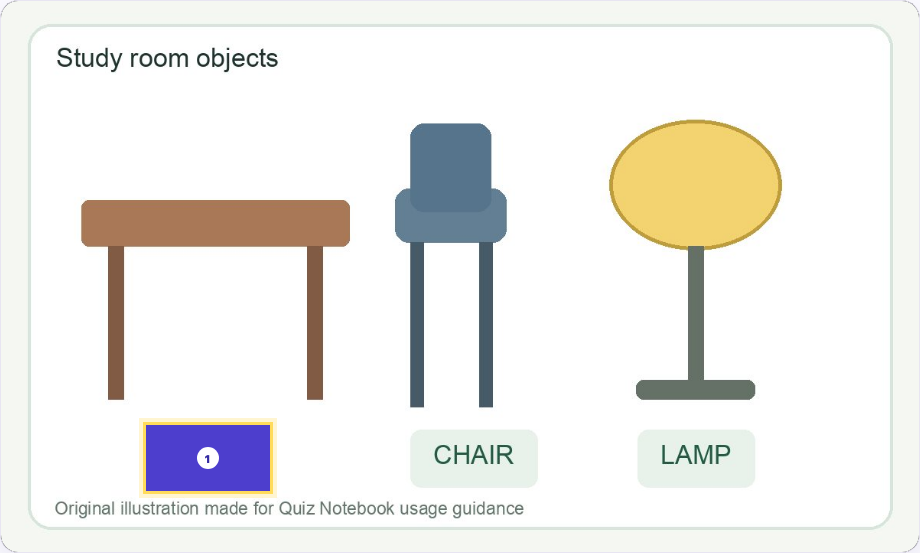
  1. Open set creation on Home and name it Practice_Desk objects.
  2. Enter the three lines below. Each line is one card; | separates the question on the left from the answer on the right.
  3. Choose Save Set, inspect the pre-save check, finish saving, and reopen it in My Sets.
  4. Recall each flashcard answer before turning it over. Finish the session, then save a backup file.
책상 | desk
의자 | chair
공책 | notebook

The Korean prompts mean desk, chair, and notebook. Verify three cards, desk on the back of 책상, retained content after reopening, and the actual backup file. See exercises 007 and 059.

Separate button names from learning concepts

Home / Create / My Sets / Settings

Start / write material / open saved material / preferences and backup

Multiple choice / Matching

Select a correct choice / pair each question and answer

Image occlusion

Hide labels, recall them, then reveal the original image

Distractors / Missed cards

Incorrect choices / questions you answered incorrectly

Draft / Apply / Start / Save

Separate stages to verify in a test room

Prompts can use natural local language, but answer tokens, separators, and formulas should not be automatically translated. Keep desk, chair, notebook, and H2O as shown in the basic examples.

01 · Getting started

PDF 33

001 · Where to start

Purpose

Start with a small set, practise recalling the answers, then save a backup.

Try it

  1. Begin with exercise 007, which takes three questions from creation to review.
  2. Find your starting screen: Home, Create, My Sets, or Settings.
  3. Learners can continue with card creation and review; teachers can then read the test chapters.
  4. Use the contents to find a task. You do not need to read the entire book in order.

Example

Today: write three questions → save → study with flashcards → back up. Next: specify distractors → practise multiple choice → review missed cards.

Check the result

Decide what material you will create and which study mode you will try.

Remember

This edition uses the preserved source corresponding to Windows 1.0.9.0. It does not certify every feature on every Windows device.

If you get stuck

You can start without AI, synchronisation, or a test room. Create and review a personal set first.

PDF 34

002 · Find and install the Windows app

Purpose

Identify the correct desktop product in Microsoft Store.

Try it

  1. Search for Quiz Notebook in Microsoft Store or use the official link below.
  2. Read the product name and description; Wrongnote Maker is a separate product.
  3. Check the current system requirements, supported devices, price, and any trial conditions.
  4. After installation, launch the app from the Windows Start menu and open a small set.

Check the result

Confirm that you can reopen the installed app from Start after closing the website.

Remember

A Windows 10 compatibility candidate and the publicly released build are different. This manual does not guarantee every Windows 10 configuration.

If you get stuck

Record installation errors. Use the official distribution route instead of disabling security settings to install an unfamiliar package.

PDF 35

003 · Check trial and purchase conditions

Purpose

Check the terms of the sales channel and preserve any material created during a trial.

Try it

  1. Read the current product page to see whether that channel offers a trial and for how long.
  2. If a trial is available, test card creation, study, image occlusion, and backup with a small personal example.
  3. Teachers should also allow time to test a connection with one participant.
  4. Back up important material before expiry, and check the product and account before paying.

Example

Keep a short checklist: cards created; printing checked; student connection not yet tested.

Check the result

Separate the features you need, those tested successfully, and those still untested.

Remember

Trial periods, prices, and discounts depend on the current sales page. Reinstalling does not establish a new trial. Purchases on different operating systems are not automatically combined.

If you get stuck

Purchase, installation, and restoring your material are separate steps. Verify each one. Do not assume editing or export remains available after trial expiry.

PDF 36

004 · Find Home, Create, My Sets, and Settings

Purpose

Learn where to start a task and reopen saved material.

Try it

  1. Use Home to start creating a set or an image-occlusion activity.
  2. Use Create to enter a title and content and check them before saving.
  3. Use My Sets to reopen material, study, or edit cards.
  4. Use Settings for display preferences, backup, and other supported options.
  5. Save any pending edits before leaving a screen.

Example

To edit yesterday's material, find its existing title in My Sets first.

Check the result

Check the question count and content, not just the title.

Remember

Opening the product website does not open your personal library. Personal material is normally stored in the app on that device.

If you get stuck

If you lose your place, save your work, return Home, and choose the task again.

PDF 37

005 · Choose display and OCR languages

Purpose

Set the menu language separately from the language of text in an image.

Try it

  1. Open the language selector and choose a comfortable interface language.
  2. Check the main menus on Home, Create, and My Sets.
  3. When recognising a photo, choose the language of its text in the OCR controls.
  4. For read-aloud, also check that a suitable Windows voice is available.
  5. If any sub-screen appears untranslated, note the screen name and app version and contact support.

Example

You can use Korean menus to recognise English text, or Japanese menus to study English vocabulary.

Check the result

Changing the interface language should not translate or alter your card questions and answers.

Remember

Interface languages, OCR languages, voices, and manual languages are separate capabilities.

If you get stuck

Some auxiliary screens may retain Korean or English labels. Report the screen name and app version if a label is unclear.

PDF 38

006 · Understand where your material is stored

Purpose

Distinguish local storage, backups, selected synchronisation, and AI requests.

Try it

  1. Personal cards and photos are stored locally by default.
  2. Exporting a backup writes a copy to the location you choose.
  3. Sharing study records does not transfer the entire card content.
  4. Material synchronisation requires a separate account and selection of its scope.
  5. An AI request sends the text you approve to the provider you choose.

Example

Saving an image-occlusion set does not by itself publish it or deliver it to another computer.

Check the result

On the receiving device, open the cards, images, and study position you need to verify.

Remember

Local-first storage does not mean optional sync or AI features never use a network.

If you get stuck

Read the transfer scope before enabling a connection. Protect backup files as carefully as the original learning material.

PDF 39

007 · Make and study your first three-card set

Purpose

Complete one small example before importing a large collection.

Try it

  1. From Home, open set creation and enter a title such as Practice_Desk objects.
  2. Enter one question and answer per line, separated by |.
  3. Choose Save Set and read the pre-save checks for blanks and duplicates.
  4. Apply the checks and save, then reopen the set in My Sets.
  5. Choose flashcards, recall each answer before revealing it, and finish the session.

Example

책상 | desk
의자 | chair
공책 | notebook
These Korean prompts mean desk, chair, and notebook. Keep the English answer tokens unchanged.

Check the result

Confirm there are three cards, the back of 책상 is desk, and the set remains after reopening.

Remember

This is a small, independently written practice example. Check the format before adding real study material in bulk.

If you get stuck

If the count is wrong, check one card per line and the | between question and answer.

PDF 40

008 · Prepare useful learning material

Purpose

Keep the source material and study cards connected without confusing their roles.

Try it

  1. Note the source title and edition of the text, notes, or images you use.
  2. Decide whether you need definitions, a sequence, or locations in a diagram.
  3. Ask one recall question per card; split questions that require several unrelated answers.
  4. Keep a record of where each answer or addition came from.
  5. Check permission before distributing material or using it in a group test.

Example

Use question–answer cards for terms, cloze sentences for context, and image occlusion for locations.

Check the result

You should be able to return to the source and explain why each answer is correct.

Remember

Passing a format check does not verify factual accuracy or rights to distribute the material.

If you get stuck

Keep personal study files separate from files intended for other people.

02 · Create questions, answers, and distractors

PDF 41

009 · Give sets recognisable titles

Purpose

Make the subject, range, and edition easy to identify later.

Try it

  1. Enter a title before saving a set.
  2. Put the subject or purpose first, followed by the range and date or edition.
  3. Record changes when the source material changes.
  4. Check that the useful part of the title is visible in My Sets.

Example

English_Desk objects_Basics_20261003; Biology_Cell diagram; Law_Lecture 3.

Check the result

A week later, the title should still tell you which material the set contains.

Remember

Avoid unnecessary personal information. Renaming a set does not alter its cards or purchase rights.

If you get stuck

If titles are similar, compare the question count and a representative question before editing.

PDF 42

010 · Enter one question and answer per line

Purpose

Use the basic text format reliably.

Try it

  1. Use one line for each card in the question-and-answer field.
  2. Type the question, then |, then the correct answer.
  3. Press Enter before adding the next card.
  4. Check both sides before saving, then confirm their order in the saved set.

Example

Number of sides of a triangle | 3
Minutes in one hour; digits only | 60
Chemical formula of water | H2O

Check the result

Check that the question does not reveal the answer or ask several unrelated things at once.

Remember

The | character separates fields. If your content needs that character, use an equivalent expression and test the saved result.

If you get stuck

Check pasted text for line breaks that accidentally divide one question across several lines.

PDF 43

011 · Write short, precise correct answers

Purpose

Make the expected answer clear for recall and typed-answer practice.

Try it

  1. State whether the question asks for a name, number, or definition.
  2. Write the essential correct answer concisely.
  3. Specify units in the question or include them consistently in the answer.
  4. Test alternative wording rather than assuming all synonyms are accepted.
  5. Keep longer explanations in your source notes.

Example

If the question says “Minutes in one hour; digits only,” register 60. If it requires “60 minutes,” make that condition explicit.

Check the result

Another reader should understand what kind of answer to give.

Remember

Typed-answer comparison is not semantic AI grading of every synonym or essay.

If you get stuck

Compare a rejected answer with the registered answer to distinguish a typo from a wording difference.

PDF 44

012 · Specify your own multiple-choice distractors

Purpose

Practise distinctions you actually find confusing.

Try it

  1. After the question and correct answer, add distractors separated by |.
  2. Keep the correct answer in the first answer field; put only incorrect choices after it.
  3. Providing three distinct distractors reduces the need to fill choices from other cards.
  4. Save and open multiple choice to inspect the actual choices.

Example

공책 | notebook | desk | chair | lamp
The prompt means notebook. Only notebook is correct.

Check the result

Confirm the three distractors are distinct and none is another correct answer.

Remember

If too few distractors are supplied, other answers in the same set may be used. Inspect the result for unrelated choices.

If you get stuck

The displayed answer position can change. Choose by meaning, and replace debatable distractors with clear alternatives.

PDF 45

013 · Choose effective distractors

Purpose

Make questions test concepts rather than visual clues.

Try it

  1. Choose distractors from the same category as the correct answer.
  2. Keep their wording and length reasonably comparable.
  3. Remove any distractor that could also be correct under the question's conditions.
  4. Do not use a synonym or translation of the correct answer as an incorrect choice.
  5. Explain why each choice is right or wrong in the study screen.

Example

H2O, CO2, O2, and NaCl compare chemical formulas. “Chair” would be an easy visual clue to eliminate.

Check the result

You should be able to explain why exactly one choice is correct.

Remember

Automatic checking does not establish the academic validity of the distractors.

If you get stuck

Use learners' actual confusion to improve choices instead of judging only the score.

PDF 46

014 · Fix missing or duplicate choices

Purpose

Check why a question has fewer than four choices.

Try it

  1. Read its correct answer and supplied distractors.
  2. Check for distractors identical to the answer or to each other.
  3. If choices are missing, check whether the set has enough other distinct answers.
  4. Add three distinct distractors if needed, then reopen multiple choice.

Example

“공책 | notebook | notebook | desk | desk” does not contain four distinct answers.

Check the result

Check both the number of choices and whether exactly one is correct.

Remember

Every set does not automatically become a valid four-choice quiz. Small sets particularly benefit from explicit distractors.

If you get stuck

Preserve the earlier material and change one question at a time to locate duplicates.

PDF 47

015 · Read the pre-save checks

Purpose

Catch empty fields, incorrect separators, and duplicates before saving.

Try it

  1. Choose Save Set after entering content.
  2. Read the number of valid questions and items needing attention.
  3. Return to editing if a question or answer is missing.
  4. Check again, compare the count with your expectation, then apply and save.

Example

If ten input lines yield nine valid questions, inspect blank answers, separators, and duplicate notices.

Check the result

Compare the checked count with the number saved in My Sets.

Remember

This is a local format check, not validation of law, medicine, or factual correctness.

If you get stuck

Even after a successful check, read the first, middle, and last cards yourself.

PDF 48

016 · Create cloze questions from a sentence

Purpose

Hide key words while retaining enough context to recall them.

Try it

  1. Select the cloze or fill-in-the-blank option in Create.
  2. Paste a sentence or short paragraph.
  3. Open word selection and inspect the candidates.
  4. Choose words that match your learning purpose, then save and study the set.

Example

In “Water consists of hydrogen and oxygen,” hide hydrogen or oxygen and use the remaining sentence as context.

Check the result

Check that the hidden span is meaningful and not so long that the sentence becomes unclear.

Remember

More blanks do not automatically make better practice.

If you get stuck

When making different blanks from one sentence, keep a note of the concept each question tests.

PDF 49

017 · Improve the context of cloze questions

Purpose

Test understanding instead of memorised blank positions.

Try it

  1. Read only the visible part of the sentence first.
  2. Consider whether several answers could fit the blank.
  3. Make unclear conditions or scope explicit.
  4. Split long passages into meaningful units; after checking an answer, reread the complete sentence.

Example

“The capital of France is ____” is clearer than “The capital is ____.”

Check the result

Check that a new reader can understand the question and justify its answer.

Remember

Recognising the position or length of a blank is different from understanding the concept.

If you get stuck

Ask about the same concept in another context to check whether you remember more than the wording.

PDF 50

018 · Check the saved set before studying

Purpose

Verify that entered material works as an actual study set.

Try it

  1. Open it in My Sets and check the title and count.
  2. Read every question and answer against the source.
  3. For multiple choice, inspect the supplied and displayed distractors.
  4. Complete a study session and check the result and review controls.
  5. Correct errors and back up before relying on the set.

Example

Record “20 entered; 20 checked against source; 20 choice checks; 2 corrected.”

Check the result

Confirm the expected questions, answers, and choices are present.

Remember

Checking one set does not establish that every other set or device is correct.

If you get stuck

Keep the older edition when changing material so you can compare revisions.

03 · Start from files, photos, and PDFs

PDF 51

019 · Import a TXT file

Purpose

Bring in question–answer text without retyping it.

Try it

  1. Prepare one question per line with the expected separator.
  2. Use the app's file-import control to select the TXT file.
  3. Check the imported text in the question-and-answer field.
  4. If characters are garbled, try a UTF-8 copy; then add a title, check, and save.

Example

Put “책상 | desk” and “의자 | chair” on separate lines in a text editor.

Check the result

Check the first and last lines and compare the question count with the source.

Remember

Selecting a file does not finish saving a set. Review and save the imported content.

If you get stuck

Keep the source file separate from the import copy.

PDF 52

020 · Import CSV or TSV

Purpose

Bring in tabular questions and answers with the columns correctly aligned.

Try it

  1. Identify the question and answer columns in the source table.
  2. Start with a two- or three-row CSV or TSV sample.
  3. Check the column mapping after import.
  4. Inspect commas, tabs, quoted values, and line breaks within cells.
  5. Once the sample works, import the rest and check before saving.

Example

“책상[TAB]desk” represents two columns. [TAB] means an actual tab character, not the letters shown here.

Check the result

Check that question and answer are not reversed or split across unintended columns.

Remember

A comma may be content or a separator. Use your spreadsheet's CSV export function.

If you get stuck

If extra numbering or explanation columns cause problems, prepare a copy containing the required question and answer columns.

PDF 53

021 · Prepare and import Excel material

Purpose

Check the first worksheet and column structure before importing cards.

Try it

  1. Preserve the original workbook and make an import copy.
  2. Arrange questions and answers on the first worksheet.
  3. Inspect headings, merged cells, empty rows, and displayed formula results.
  4. Import XLSX, compare values and question counts, then save.

Example

Start with three rows: questions in column A and answers in column B.

Check the result

Pay attention to dates, numbers, and leading zeroes; compare them with Excel's displayed values.

Remember

Import does not reproduce every sheet and formatting feature of the workbook.

If you get stuck

Check the actual first worksheet and imported result rather than relying on the filename.

PDF 54

022 · Divide long material into manageable sets

Purpose

Make review and correction easier by importing meaningful sections.

Try it

  1. Divide by unit, topic, or source pages.
  2. Import a small section and check the format and card direction.
  3. Apply the checked format to the remaining sections.
  4. Name each range and record its count.
  5. Compare section totals with the original to find omissions or duplicates.

Example

Divide 300 words by source chapter. This is an organisation example, not an app limit.

Check the result

Make it possible to trace a card back to its source range.

Remember

Repeated imports are not guaranteed to merge automatically.

If you get stuck

Use combined study across sets rather than rebuilding one large source set when appropriate.

PDF 55

023 · Recognise text with Page Scan

Purpose

Check text recognised from a photo before turning it into learning material.

Try it

  1. Open Page Scan from Home and select a photo.
  2. Select the main language of the text.
  3. Review the recognised text when processing finishes.
  4. Compare it with the photo and correct missing text, spacing, symbols, and line order.
  5. Arrange it as questions and answers or cloze text, then save.

Example

Start with a clear photo of two or three words before working through a full page.

Check the result

Verify the content, not just the recognition-complete message.

Remember

Blur, skew, tables, and formulas can produce errors. Do not register unchecked output as a correct answer.

If you get stuck

If results are poor, improve the image and language selection before retrying a small region.

PDF 56

024 · Prepare a clear OCR photo

Purpose

Reduce avoidable recognition errors before processing an image.

Try it

  1. Place the page flat and include the required text.
  2. Keep the camera square to the page and check focus.
  3. Avoid shadows, glare, and cropped edges.
  4. Use a clear, readable image and test a small section first.

Example

A straight, well-lit photo of a few lines is a better first test than a tilted full-page shot with small text.

Check the result

Check that characters and punctuation are legible when enlarged.

Remember

Image quality helps OCR but does not guarantee perfect recognition of handwriting, tables, or mathematics.

If you get stuck

Keep the original and retake a poor image before repeatedly processing the same unreadable file.

PDF 57

025 · Read text from a PDF

Purpose

Distinguish text PDFs from image-only PDFs and check the imported content.

Try it

  1. Try selecting and copying text in a PDF viewer.
  2. Open the PDF import function supported by your installed edition.
  3. Check the reading order across paragraphs, columns, and page breaks.
  4. Arrange the necessary text into questions and answers or cloze sentences.
  5. After saving, check tables, formulas, and question numbers for mixed-up content.

Example

Even selectable PDF text can include unwanted line breaks and headers. Inspect the first and last pages.

Check the result

Compare the extracted reading order and symbols with the visible original.

Remember

Opening a PDF and automatically analysing an exam are different capabilities. Complex formulas and columns may need correction.

If you get stuck

Image-only PDFs may require OCR and editing. Check the file picker's supported formats first.

PDF 58

026 · Locate an import failure

Purpose

Keep the original and identify whether the failure concerns the file, extracted content, or saving.

Try it

  1. Check whether another application can open the original file.
  2. Read errors concerning encryption, corruption, or access permission.
  3. Import a small supported file using the same steps.
  4. If only the small file works, examine the original's sheets, columns, characters, or page structure.
  5. If content appears but no set exists, check whether the final save was completed.

Example

Renaming an XLSX file to .csv does not convert it. Export a CSV copy from its original application.

Check the result

Distinguish failure to open the file, incorrect field splitting, and failure to save the set.

Remember

Do not delete large amounts of source material or all app data merely to remove an error.

If you get stuck

Record the format, file size, failed stage, and error text. Share only the minimum necessary source content for support.

04 · Manage sets and edit cards

PDF 59

027 · Reopen the correct saved set

Purpose

Choose the intended material before resuming study or editing.

Try it

  1. Check the title and question count in My Sets.
  2. Distinguish similar titles using the first question or a representative answer.
  3. Open the set and check its cards and available study modes.
  4. If material from another device is missing, check local storage and the selected sync scope.

Example

Two sets named English_Basics may contain 20 and 30 questions or cover different source chapters.

Check the result

Confirm the intended material before changing a card.

Remember

Signing into the same account does not automatically transfer every unselected local set.

If you get stuck

Search and sorting depend on the installed edition. A title that identifies the study range makes retrieval easier.

PDF 60

028 · Correct a card

Purpose

Fix an incorrect question or answer without rebuilding the whole set.

Try it

  1. Open the set in My Sets.
  2. Open the card edit/delete controls and choose Edit for the intended card.
  3. Compare the question and answer with the source, then correct them.
  4. Save and verify the change in both the card list and study screen.
  5. If this set is synchronised, verify the receiving device separately.

Example

Correct “Notebook | notebok” to notebook, then check the back of the card and typed-answer comparison.

Check the result

Check that the front and back were not swapped and no duplicate card was added.

Remember

Do not assume distractor fields can be edited if those controls are absent. Keep choices in the import source when needed.

If you get stuck

Back up before editing several cards so you can compare the previous content.

PDF 61

029 · Add an image to an ordinary card

Purpose

Combine a question and image in a standard study card.

Try it

  1. In card editing, choose the image control shown, such as Add JPG.
  2. Select an image whose content is clearly readable.
  3. Replace or remove the image if necessary.
  4. Save and verify that both the text and image appear.
  5. Try flashcards or matching with the saved card.

Example

Add a drawing of a triangle to the question side and register triangle as the answer.

Check the result

Check that the image is not cropped incorrectly or attached to the wrong question.

Remember

Ordinary image cards and image occlusion are different formats. Typed-answer and multiple-choice modes may be restricted for ordinary image sets.

If you get stuck

Large photos increase storage and backup size. Keep the original separately and use a readable copy of a suitable size.

PDF 62

030 · Delete a card or a set safely

Purpose

Distinguish deleting one card from deleting its entire set.

Try it

  1. To remove one card, use that card's delete control.
  2. To remove a set, read the set-deletion confirmation.
  3. Check the title and question count to confirm the target.
  4. Back up important material before deletion.
  5. Afterwards, check the remaining card count and set list.

Example

Deleting one card from 20 leaves 19. If the whole set disappears, a different deletion scope was selected.

Check the result

Confirm the target, deletion scope, and backup location before proceeding.

Remember

Clearing all data is not a way to correct one card. Check whether deletion also affects synchronised material.

If you get stuck

After an accidental deletion, inspect backups before making more edits, and preserve the current state separately.

PDF 63

031 · Study important or missed cards

Purpose

Focus on selected important cards and questions you previously missed.

Try it

  1. Open a set and locate the card-range controls.
  2. All covers the set; Important covers marked cards; Wrong or Missed covers review targets based on recorded mistakes.
  3. Mark an important card and verify it appears in that range.
  4. After a wrong answer, check the missed-card range or review screen.
  5. Afterwards, test the concept again among all cards.

Example

Mark five important words in a 30-word set, then review the three you missed.

Check the result

If the count differs from your expectation, check marks and study records.

Remember

Missed cards are questions the learner answered incorrectly. They are not multiple-choice distractors. Also distinguish this range from cumulative statistics.

If you get stuck

Zero missed cards does not guarantee mastery. Hide the answers and try recalling them.

PDF 64

032 · Study several sets together

Purpose

Review several ranges together while keeping their original sets separate.

Try it

  1. In My Sets, open the control for studying multiple sets together.
  2. Select only the sets needed for this session.
  3. Check the selection count and available study modes.
  4. Begin and verify that questions come from the intended ranges.
  5. After finishing, check that the original sets remain separate.

Example

Keep Chapter 1 and Chapter 2 as separate sets and review them together at the weekend.

Check the result

Distinguish combining a study selection from merging the underlying data.

Remember

Supported selections may differ for image occlusion, sticky notes, and other formats. Read the selection screen.

If you get stuck

This is personal study using multiple sets. A test room for other participants is a separate feature.

05 · Choose a way to review

PDF 65

033 · Recall answers with flashcards

Purpose

Try answering before revealing the back of each card.

Try it

  1. Choose today's range: all, important, or missed cards.
  2. Read the question on the front in flashcard mode.
  3. Say or write your answer before turning the card over.
  4. Reveal the answer and compare it with yours.
  5. Move through the cards and finish the session.

Example

Read the prompt for notebook and recall notebook before revealing it. Recognising an answer and recalling it independently are different.

Check the result

Check whether you can answer again with the back hidden.

Remember

The number of cards turned or a completion message does not prove long-term retention.

If you get stuck

If an answer is too long, make one concise main-point card and separate cards for the details.

PDF 66

034 · Move between cards and finish a session

Purpose

Check the selected range and your position when moving or pausing.

Try it

  1. Read the current card number and total count.
  2. Use Previous to revisit the preceding card.
  3. Before choosing Next, check that you actually attempted an answer.
  4. After the last card, read the completion screen or finish control.
  5. When returning, check the saved position and the option to start again.

Example

If you pause at card 6 of 10, check the displayed card when returning. Position and correctness records are different.

Check the result

Distinguish closing a screen from completing a session and verify that needed results were retained.

Remember

Continuing at the same position on another device requires supported transfer. It is not automatic on every device.

If you get stuck

Use the provided finish control instead of force-quitting when possible.

PDF 67

035 · Type an answer before checking it

Purpose

Test recall by entering text without first viewing the answer.

Try it

  1. Choose typed-answer study for a text set.
  2. Read the required units and answer format.
  3. Enter an answer and inspect the result.
  4. Compare your input with the registered answer.
  5. Continue through the session.

Example

For “Minutes in one hour; digits only,” enter 60. Words such as sixty minutes may be treated differently from the registered 60.

Check the result

Distinguish typos, different wording, and a missing understanding of the concept.

Remember

This is not semantic AI marking of every long answer. Standardise the required form before using it for assessment.

If you get stuck

For formulas or complex legal terms, test a small example's input and display first.

PDF 68

036 · Compare concepts with multiple choice

Purpose

Compare the correct answer with plausible alternatives.

Try it

  1. Choose multiple choice from the set.
  2. Read the question and, if possible, recall the answer before reading the choices.
  3. Select one choice and inspect the result.
  4. If it was wrong, compare the selected answer with the source to understand why.
  5. Try answering when the choice order changes.

Example

After choosing among notebook, desk, chair, and lamp, explain the meanings of the other words too.

Check the result

Check your understanding of the differences, as well as whether you chose correctly.

Remember

Automatically filled choices depend on the set's contents. Supply distractors for important comparisons and inspect their display.

If you get stuck

If two choices seem correct, examine the question and choices before attributing the result to learner error.

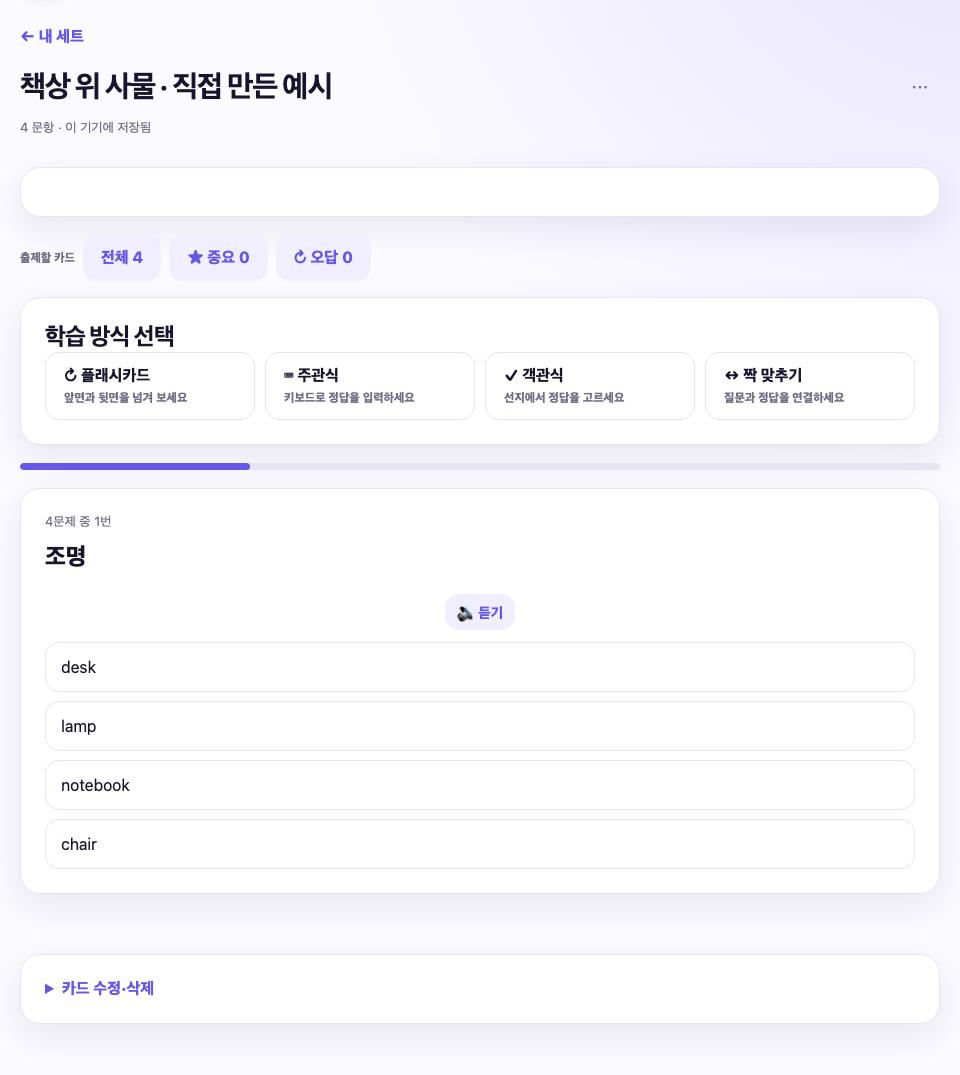
Read the multiple-choice screen

Read the multiple-choice screen
Actual local product-source screen · original practice material · Korean interface. This is not a native installed-Windows device photograph; screens can differ by version.
  1. Select a study mode, then inspect the question and choices.
  2. The prompt means lighting; the answer is lamp. Specific distractors test confusion.
  3. Distinguish all, important, and missed ranges from the current question number.
PDF 70

037 · Match questions with answers

Purpose

Connect shuffled questions and their corresponding answers.

Try it

  1. Choose matching from the set.
  2. Select a question and then its answer.
  3. Check completed pairs and remaining items.
  4. Review any incorrect pairing and continue.
  5. Move to the next group or completion screen.

Example

Match prompts for a desk, chair, and notebook with desk, chair, and notebook. Repeated synonymous answers can make pairing ambiguous.

Check the result

Check which pairs were completed and which caused hesitation.

Remember

If several answers are identical, make the questions more specific so each pairing is clear.

If you get stuck

Supported ordinary image cards can also be used, but image occlusion has a different study method.

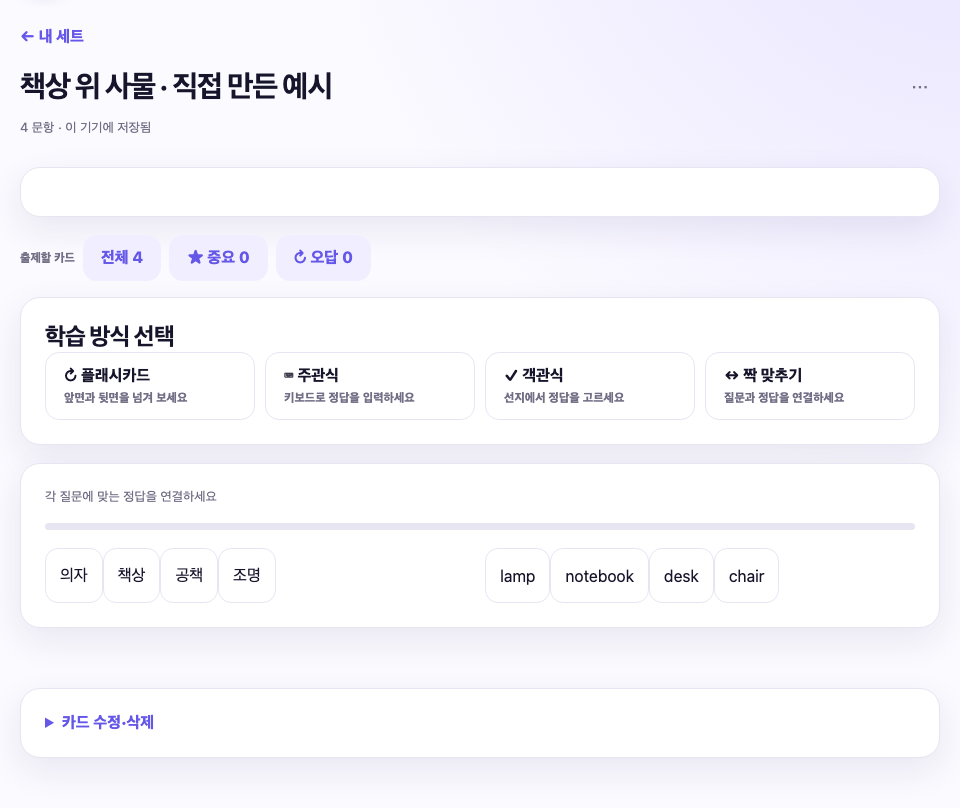
Read the matching screen

Read the matching screen
Actual local product-source screen · original practice material · Korean interface. This is not a native installed-Windows device photograph; screens can differ by version.
  1. Select a question on the left and its answer on the right.
  2. These are four original object-name pairs. Check that answers are distinguishable.
  3. After quick matching, hide answers and see whether you can recall them.
PDF 72

038 · Review only the cards you missed

Purpose

Recall missed content again and identify the source of the difficulty.

Try it

  1. Open review after studying or the set's missed-card range.
  2. Check that the cards correspond to the questions you missed.
  3. Try answering again before revealing the answer.
  4. For repeated errors, also check unclear questions, answers, or distractors.
  5. Afterwards, test the same concept among the full range.

Example

If desk and chair are confused, compare their meanings using a simple drawing or example sentence.

Check the result

Check whether you can answer after the wording or order changes.

Remember

Emptying an error list is not the sole purpose. The records help you choose the next review.

If you get stuck

With limited time, review missed questions once and choose the next review date yourself.

PDF 73

039 · Use read-aloud and dictionary controls

Purpose

Check spelling, pronunciation, and meaning while recognising device differences.

Try it

  1. Look for read-aloud and dictionary controls on the card.
  2. Start read-aloud and check the voice language and volume.
  3. If the desired voice is missing, check Windows language and voice settings.
  4. Compare a dictionary meaning with the card's context.
  5. If pronunciation or meaning seems wrong, check the spelling and selected language.

Example

A spelling can have several meanings. Do not automatically replace your answer with the first dictionary entry.

Check the result

Verify both that sound plays and that it uses the correct language.

Remember

Changing the interface language does not necessarily install a voice. A dictionary control may open an external site.

If you get stuck

Test speakers or headphones before class and close unrelated windows containing personal information.

PDF 74

040 · Turn study results into a next step

Purpose

Use results to decide what to study next.

Try it

  1. Check correct answers and missed questions.
  2. Separate unfamiliar concepts, typos, and unclear questions.
  3. If self-rating is available, select the description that matches your actual recall.
  4. Adjust suggested review dates to your schedule.
  5. Begin the next session with the difficult material.

Example

Eight correct answers out of ten can still leave two important concepts that need focused work.

Check the result

Choose one practical next action instead of only reading the score.

Remember

Learning stages, visit counts, and correct-answer records do not guarantee ability or completed memorisation.

If you get stuck

Use only the support you find helpful if keeping detailed records becomes a burden.

06 · Image occlusion in detail

PDF 75

041 · Choose material for image occlusion

Purpose

Use hidden labels to remember positions and relationships in a diagram.

Try it

  1. Identify the names or locations to learn in a map, chart, or diagram.
  2. Decide whether the visual arrangement matters or a text card is sufficient.
  3. Open image occlusion from Home.
  4. Choose a clear source image.
  5. Decide what to cover and what to leave as context.

Example

Practise anatomical labels, place names on a map, or component names in a circuit.

Check the result

Ensure the diagram still makes clear what you are being asked.

Remember

This is a separate format from an ordinary image card. Image occlusion covers parts of a diagram for recall.

If you get stuck

Start with your own drawing of three labelled shapes to learn the controls.

PDF 76

042 · Load, zoom, and move the image

Purpose

Inspect the whole image before zooming in to create masks.

Try it

  1. Select and open the source image.
  2. Fit the image to the screen and inspect its edges.
  3. If labels are small, zoom in using the supported controls.
  4. Use image-movement mode to reach the area you want to edit.
  5. Switch back to the masking tool before drawing.

Example

On a tall diagram, inspect the legend and answer labels at the bottom as well as the top.

Check the result

Check that the image, orientation, and resolution are suitable.

Remember

Check the active tool so that an attempt to move the image does not create a new mask.

If you get stuck

If zooming loses your position, fit the image to the screen again.

PDF 77

043 · Cover a label with a rectangle

Purpose

Turn a label or small diagram area into a recall question.

Try it

  1. Select the rectangle tool.
  2. Drag from outside one corner of the label to its opposite corner.
  3. Check that no part of the answer remains visible.
  4. Move the mask or adjust its handles to correct the boundary.
  5. Mark the other labels one at a time.

Example

Cover all of Tokyo's label without hiding a neighbouring place name or essential map detail.

Check the result

Hide the complete answer while keeping necessary surrounding information visible.

Remember

A larger mask is not always better; it may remove context needed for another question.

If you get stuck

If your edition offers bracket-style masks, inspect their appearance in the saved study screen too.

PDF 78

044 · Move, resize, and remove a mask

Purpose

Align mask boundaries with the source image.

Try it

  1. Select the region you want to change.
  2. Drag it into position.
  3. Resize it using the corner handles.
  4. Remove an unnecessary region with the selected-region delete control.
  5. Undo a mistaken operation and inspect the remaining regions.

Example

Use two small masks for two separate numerical answers rather than one large mask covering both.

Check the result

Check that only the intended region was deleted and neighbouring regions did not move.

Remember

Erasing part of a brush mask and deleting a whole rectangle are different actions.

If you get stuck

Return to the full-image view after editing and check the complete arrangement.

PDF 79

045 · Paint and confirm a brush mask

Purpose

Cover an irregular area and confirm it as one question.

Try it

  1. Select the brush masking tool.
  2. Choose a suitable stroke width.
  3. Paint the required areas; you can lift the pointer and continue painting.
  4. When all parts of one answer are covered, confirm that mask region.
  5. Check the confirmation indicator and the region that will be saved.

Example

One region can cover a label beside a curved arrow or two separated parts of the same answer.

Check the result

Confirm the painted marks have become a saved region rather than remaining provisional strokes.

Remember

Several answers combined into one region may be treated as one question. Decide the question unit first.

If you get stuck

After changing zoom, test the brush width on a small area before continuing.

PDF 80

046 · Erase brush overspill and use a pen

Purpose

Correct painted boundaries and select a suitable input mode.

Try it

  1. Select the control for erasing part of a brush mask.
  2. Stroke over unwanted paint to reveal only the required image area.
  3. Use Undo to reverse a whole operation.
  4. On a pen-capable Windows device, check touch-and-pen or pen-only input mode.
  5. Before saving, check that the answer remains fully hidden.

Example

Erase paint beyond a boundary to reveal surrounding detail while keeping the answer covered.

Check the result

Confirm that you changed the mask rather than erased the original image.

Remember

Pressure sensitivity and palm handling vary by device. Pen behaviour on another operating system does not establish Windows support.

If you get stuck

If the mouse stops responding in pen-only mode, check the selected input mode.

PDF 81

047 · Choose hide-all or hide-one study

Purpose

Adjust visible clues and difficulty to your learning purpose.

Try it

  1. In hide-all mode, recall the current answer while other labels are hidden too.
  2. In hide-one mode, use the surrounding visible labels as clues.
  3. For a new diagram, begin with enough context to understand its relationships.
  4. As you become familiar with it, reduce clues and test recall again.
  5. After saving, verify the selected mode in the study screen.

Example

Learning one city's position and recalling every city name require different amounts of context.

Check the result

Check exactly which parts are hidden and visible in each mode.

Remember

More masks do not automatically improve learning. Keep the question understandable.

If you get stuck

Region names are optional, but short names make several masks easier to manage.

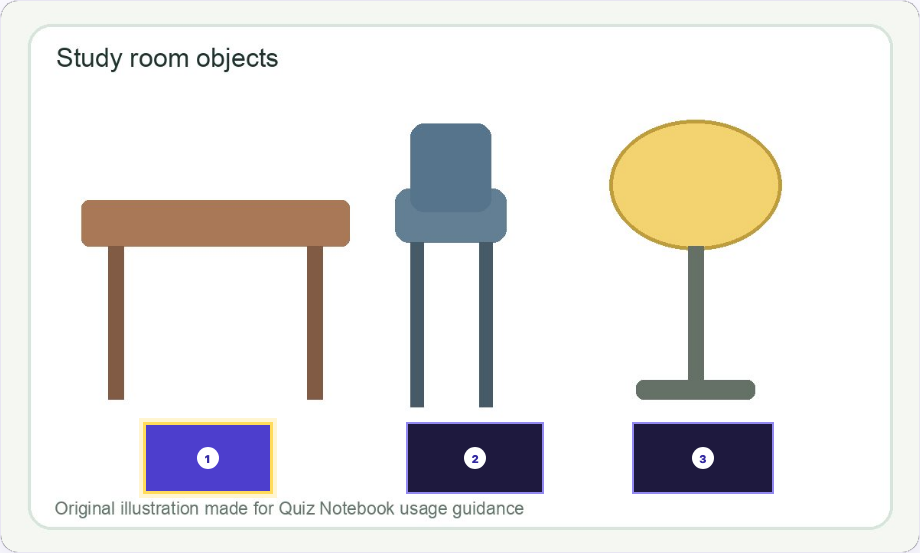
One diagram, different clues

A Hide all; answer one region at a time

A  Hide all; answer one region at a time

Recall the current region while other labels remain hidden.

B Hide one region; keep surrounding clues

B  Hide one region; keep surrounding clues

Keep surrounding names as clues while focusing on the current region.

Actual local product-source screen · original practice material · Korean interface. This is not a native installed-Windows device photograph; screens can differ by version.
PDF 83

048 · Reveal and review a hidden answer

Purpose

Recall first, then check the image and record your own recall accurately.

Try it

  1. Open the saved image-occlusion set.
  2. Identify the current region's question and answer it before revealing.
  3. Use the mask or reveal control to view the original answer.
  4. If self-rating is offered, choose the option matching certainty, hesitation, or an error.
  5. Hide it again or move to the next region, then finish the session.

Example

Distinguish recalling only after seeing the answer from answering independently beforehand.

Check the result

Confirm that hidden text does not show through and becomes readable after revealing.

Remember

Self-rating differs from automatic multiple-choice marking. Moving to the next region does not establish prior knowledge.

If you get stuck

Hide the answer again to check whether your next response depends only on just having read it.

PDF 84

049 · Edit a saved image-occlusion set

Purpose

Add regions or correct masking positions in saved material.

Try it

  1. Open the intended set in My Sets.
  2. Choose the control for editing the image and hidden regions.
  3. Add, move, or remove regions; change names or study mode if needed.
  4. Save, reopen, and verify the changes.
  5. If synchronised, also inspect the receiving device.

Example

Initially hide only the nucleus in a cell diagram, then add the membrane and cytoplasm later.

Check the result

Inspect both old and new region counts and positions in the whole diagram.

Remember

Replacing an image may misalign existing coordinates. Do not assume masks automatically follow changed content.

If you get stuck

Back up before major edits and keep the original image separately.

PDF 85

050 · Practise the complete image-occlusion workflow

Purpose

Create, edit, and review a simple diagram of your own.

Try it

  1. Draw a triangle, square, and circle and write each shape's name.
  2. Open that image and decide where to cover each label.
  3. Use rectangles for two labels and a brush for one; confirm the brush region.
  4. Save and study both hide-all and hide-one versions.
  5. Change one region, reopen the set, and inspect the result.

Example

Checklist: three regions; original image visible; answers hidden; answers revealed correctly; edits saved.

Check the result

Verify both that controls worked and that the masks covered the correct content.

Remember

If moving fails, check movement mode; if drawing fails, check the drawing tool; if brush marks are missing, check region confirmation.

If you get stuck

Medicine, geography, and circuits use the same sequence: select a region → recall first → check the original. Adapt the visible context to the material.

07 · Sticky notes and handwriting boards

PDF 86

051 · Create a sticky-note board

Purpose

Arrange short notes and handwriting on a blank or photographic background.

Try it

  1. Open board creation from Home's sticky-note or quick-create entry.
  2. Choose a blank background or a photo.
  3. For a photo background, select your own source image.
  4. Plan the heading and note positions, then add the first sticky note.

Example

Write three concepts to check today on a blank board, or add explanatory notes to your own diagram.

Check the result

Check that backgrounds and notes do not obscure essential content.

Remember

Placing a photo in the background does not automatically recognise its text.

If you get stuck

Save and reopen one small board first to check the workflow and storage.

PDF 87

052 · Arrange sticky notes

Purpose

Change note positions, sizes, and colours for readability.

Try it

  1. Put one topic on each note.
  2. Drag its upper area to move it.
  3. Drag the bottom-right handle to resize it.
  4. Choose colours by topic or review status, and collapse notes when useful.

Example

Choose your own meanings: blue for concepts, yellow for confusing points, pink for questions.

Check the result

Check that overlapping notes do not hide necessary text.

Remember

Include short labels such as Question as well as colours.

If you get stuck

If everything fits only with tiny text, split the topics into several boards.

PDF 88

053 · Write and erase on a board

Purpose

Annotate with a pen or mouse and correct strokes.

Try it

  1. Select handwriting mode.
  2. Choose a stroke width and draw with a mouse or supported pen.
  3. Where supported, select pen-only input to reduce touch input.
  4. Correct with the eraser or Undo; return to movement/text mode to move or type in notes.

Example

Underline a key term and connect related concepts with arrows.

Check the result

Save and reopen to check that necessary strokes remain.

Remember

Drawing handwriting does not by itself provide text recognition or export to other apps.

If you get stuck

If you cannot move or type, check the active mode and selected board.

PDF 89

054 · Save and reopen a board

Purpose

Continue editing previously saved notes.

Try it

  1. Save the board.
  2. Find its title in the saved list and reopen it.
  3. Edit text, positions, and handwriting.
  4. Save and reopen again. Back up before substantial changes.

Example

Write three questions on day one and add answers or findings the following day.

Check the result

Verify the background, text, colours, and handwriting.

Remember

Synchronising study records alone may not transfer the board's content.

If you get stuck

For another device, check the supported transfer method and actually open the received board.

08 · Plan study and review

PDF 90

055 · Choose how much study assistance to use

Purpose

Adjust helper displays and notifications to suit your workflow.

Try it

  1. Open the study-assistant options in Settings.
  2. Inspect the available quiet, light, fuller-support, and custom choices.
  3. Select an option and inspect Home.
  4. Adjust distracting items through custom settings.

Example

Enable today's plan first and add other assistance only when helpful.

Check the result

Check that needed information is clear and starting study has not become cumbersome.

Remember

Disabling assistance is different from deleting material or records.

If you get stuck

Choose the setting that helps you continue studying, rather than the strongest setting.

PDF 91

056 · Make today's study plan

Purpose

Include both app sets and work outside the app.

Try it

  1. Enable today's-study support in the study assistant.
  2. Add a set you intend to study.
  3. Add external work, such as reading a textbook, if needed.
  4. Choose a date and manageable amount; mark completion only after doing the work.

Example

Plan a vocabulary review and ten mathematics questions for today.

Check the result

Distinguish a scheduled task from completed study.

Remember

Adding an item to a plan does not mean it has been studied.

If you get stuck

Reduce the amount or number of tasks if unfinished plans keep accumulating.

PDF 92

057 · Prioritise and reschedule work

Purpose

Adjust priorities, postponements, and cancelled plans.

Try it

  1. Choose today's most important work.
  2. Use the available pinning or ordering controls.
  3. Move work you cannot do today to tomorrow or another date.
  4. Remove unnecessary plans and check the remaining amount.

Example

Study the subject with the nearest exam first and move a less urgent subject to tomorrow.

Check the result

Check that the plan fits your available time.

Remember

Changing a plan need not be treated as evidence of poor motivation.

If you get stuck

Split repeatedly postponed tasks into smaller units.

PDF 93

058 · Decide your next review date

Purpose

Use a suggested date as input to your own decision.

Try it

  1. Reflect on how much you recalled after studying.
  2. Read the suggested review date.
  3. Accept it, change it, or leave it unset this time.
  4. At the next review, recall before revealing and adjust the plan from the result.

Example

Even familiar material may deserve another review before next week's exam.

Check the result

Distinguish the app's suggestion from the date you confirmed.

Remember

Opening material at intervals alone does not guarantee memorisation or understanding.

If you get stuck

Consider work outside the app and your exam schedule when adjusting suggestions.

09 · Backup, restore, and connect devices

PDF 94

059 · Export a backup file

Purpose

Save a restorable copy in a location you control.

Try it

  1. Choose backup export in Settings.
  2. Select your own folder and a name containing the date.
  3. After completion, find the actual file in File Explorer.
  4. Check its size and understand what it can restore before storing it safely.

Example

A name such as QuizNotebook_backup_20261003 helps distinguish versions.

Check the result

Verify the file exists; closing the save dialog alone is not evidence of saving.

Remember

A backup may not include every item, such as API keys or purchase entitlements. Check paid-content access separately.

If you get stuck

Store private learning backups in a private location rather than a public folder.

PDF 95

060 · Prepare before importing a backup

Purpose

Protect the receiving device's data before restoration.

Try it

  1. Back up the receiving device's current state first.
  2. Check the incoming file's date, source device, and size.
  3. Open backup import.
  4. Read the merge/restore explanation, then check set counts and representative cards afterwards.

Example

Before restoring device A's data onto B, preserve material recently created on B.

Check the result

Check how existing and incoming data were handled.

Remember

Changing a filename or extension does not convert an unsupported file into a backup.

If you get stuck

Preserve the error and original file after a failure. Do not reset everything before understanding the cause.

PDF 96

061 · Verify restored material

Purpose

Inspect the contents as well as the restoration message.

Try it

  1. Check set titles and question counts.
  2. Compare the first, middle, and last questions and answers.
  3. Check images and image-occlusion regions.
  4. Inspect records and boards, then make a new backup if the result is correct.

Example

Restoring 100 cards does not by itself verify images or front/back pairing.

Check the result

Confirm both content and actual study operation, not only counts.

Remember

Paid material may require separate entitlement verification or purchase restoration.

If you get stuck

Retain both the pre-restore and source backups until checking is complete.

PDF 97

062 · Distinguish content transfer from record transfer

Purpose

Choose a method according to what you need to move.

Try it

  1. Decide whether you need learning material or study results.
  2. Check that record files and folders mainly handle study records.
  3. For account sync, read which selected material and study positions are included.
  4. Check inclusions and exclusions, then verify the receiving device.

Example

Importing records alone does not necessarily create the full cards on a device lacking their content.

Check the result

Verify material arrival, record merging, and study position separately.

Remember

Personal content is local by default. Choose external connections after understanding their scope and destination.

If you get stuck

Writing a file to a folder and delivering it through a cloud service are separate events.

PDF 98

063 · Connect a personal study-record folder

Purpose

Share study records between your own computers through a folder you control.

Try it

  1. Open the study-record folder connection in Settings.
  2. Select your own managed folder.
  3. Connect your other PC to that same personal folder.
  4. Check connection status and enable automatic connection while the app is open if desired.

Example

After studying on A, wait for the record file to reach B and verify it there.

Check the result

Check that both PCs use the same learner's records and corresponding material.

Remember

This record-sharing method does not transfer all card content, photos, notes, plans, API keys, or purchase entitlements.

If you get stuck

Distinguish an inaccessible folder from a folder with no new records. Verify mobile support separately.

PDF 99

064 · Move study records manually

Purpose

Export a record file and import it on another of your devices.

Try it

  1. Choose a destination for record export.
  2. Transfer the saved file to your other device.
  3. Import the record file there.
  4. Verify previous records were preserved and new results were incorporated.

Example

Move records between your home and school PCs only when needed.

Check the result

Check that learner and material identities match and nobody else's records were mixed in.

Remember

Importing a record file does not create a complete library of learning content.

If you get stuck

If records conflict, preserve both files and inspect them before replacing anything.

PDF 100

065 · Select material for account sync

Purpose

Choose which sets should be synchronised.

Try it

  1. Check your sign-in state in account management.
  2. Use the same email account on your own PCs.
  3. Select the sets to sync and apply the selection.
  4. Read automatic-sync scope and check status on Home or My Sets after study or edits.

Example

Sync an English set while leaving sensitive personal notes unselected.

Check the result

On the receiving device, verify card content, images, and study position separately.

Remember

Selected data is sent to the sync server. Official paid-content bodies and purchase entitlements are not transferred through this material sync. Check the receiving device.

If you get stuck

New sets are not necessarily selected automatically. Check selection and account if a set is missing.

PDF 101

066 · Resolve sync conflicts and disconnect carefully

Purpose

Compare changes before deciding which data to keep.

Try it

  1. Finish current editing and read the conflict or sync notice.
  2. Compare what changed on each device.
  3. Back up needed data before choosing what to apply.
  4. Before stopping sync or changing accounts, read how stored data will be handled.

Example

If A corrected an answer and B added an image, compare both edits instead of discarding one solely by timestamp.

Check the result

Verify the applied changes and preserved data.

Remember

Deleting a set, deleting a card, disconnecting sync, and deleting an account are distinct operations.

If you get stuck

A network failure does not by itself mean local learning material was deleted.

10 · Print tests, cards, and lists

PDF 102

067 · Choose a print format

Purpose

Produce a test, folded cards, or a list from the same set.

Try it

  1. Open the set's test/card/list printing controls.
  2. Check information to appear on paper, including titles or learner names.
  3. Choose a blank-answer test, folded cards, or a list.
  4. Set the range and maximum count, then generate a new preview.

Example

Use one vocabulary set as a test, foldable recall cards, and a reference list.

Check the result

Check whether any cards were excluded from printing.

Remember

Text-oriented formats may exclude image cards. Print settings do not edit the original set.

If you get stuck

If controls are missing, check the desktop version and which set is open.

PDF 103

068 · Choose which card side to leave blank

Purpose

Set the direction of recall on a printed test.

Try it

  1. Select test printing.
  2. With the back blank, write the answer normally shown on the back in response to the front.
  3. With the front blank, use the back as the clue and supply the front.
  4. For alternating or random directions, inspect questions and answers in the preview.

Example

If the front is an English word and the back its meaning, a blank back asks for that meaning.

Check the result

Check that the blank side matches the intended recall direction.

Remember

Reversing front and back does not translate either language.

If you get stuck

Save questions and answers from the same preview, especially when directions are mixed.

PDF 104

069 · Set print range, count, and order

Purpose

Select the material and generate a matching question-and-answer order.

Try it

  1. Choose an available range such as all, review marks, cumulative errors, or important cards.
  2. Set the maximum question count.
  3. Shuffle the order if desired.
  4. Check numbering and save questions and answers from the same generated result.

Example

Eight important cards remain eight even when the maximum is 20.

Check the result

Distinguish original card numbers from printed question numbers.

Remember

Shuffling again changes the order. Do not combine a new paper with an old answer key.

If you get stuck

Regenerate and recheck the preview after changing conditions.

PDF 105

070 · Save the question paper and answer key

Purpose

Keep questions and their corresponding answers together.

Try it

  1. Choose questions only, answers only, or both.
  2. Check that question and answer order match.
  3. Check name/date fields, wrapping, and writing space.
  4. Select a printer or PDF destination, then open the completed file.

Example

Name the pair Unit1_Questions and Unit1_Answers so their relationship is clear.

Check the result

Compare the first and last question with their answers.

Remember

A saved PDF and physically printed paper are separate outcomes.

If you get stuck

If text is clipped, adjust scaling or paper settings and test one page first.

PDF 106

071 · Use folded cards and lists on paper

Purpose

Hide answers and review without the screen.

Try it

  1. Preview folded cards and check that each front and back are adjacent.
  2. Print, cut where needed, and fold.
  3. Choose a list when you want to scan many items together.
  4. Check wrapping on every page containing long text.

Example

Cover a list's answer column with paper, answer aloud, then reveal it.

Check the result

After folding, verify each question remains paired with its answer.

Remember

Folded cards are not automatically aligned double-sided printing.

If you get stuck

Split long definitions only where their meaning and conditions remain intact.

PDF 107

072 · Inspect the final print PDF

Purpose

Check the saved result before distribution or printing.

Try it

  1. Confirm the range and question count.
  2. Check for answers accidentally visible on the question paper.
  3. Inspect line breaks, margins, and clipping through the last page.
  4. Match question/answer order and store distribution copies separately from answer keys.

Example

For 30 questions, verify numbers 1–30 and usable answer spaces.

Check the result

Open the actual saved PDF, not only the preview.

Remember

Excluded image cards can make the output count smaller than the original set's count.

If you get stuck

Use clear names and folders to avoid mixing question papers and keys from different revisions.

11 · Create a wrong-answer review PDF

PDF 108

073 · Choose a wrong-answer notebook workflow

Purpose

Distinguish printing text cards from cropping original PDF questions.

Try it

  1. Decide whether text cards suffice or original question appearance matters.
  2. Check whether you are starting from missed deck cards or an external PDF.
  3. Prepare the source and target question numbers.
  4. Test a few questions with features present in your installed edition.

Example

Card printing suits terminology; source cropping preserves diagrams and option layout.

Check the result

Check whether the output is a PDF or a new study set.

Remember

Desktop features and the separate Wrongnote Maker product may differ in capability and entitlement.

If you get stuck

Do not assume a separate product's newest features exist in your older desktop build. Check the actual screen.

PDF 109

074 · Check a source PDF before cropping

Purpose

Adapt the workflow to selectable text or scanned pages.

Try it

  1. Test whether PDF text can be selected and copied.
  2. Even with selectable text, check question numbers and column order.
  3. Enlarge a scan to inspect characters and boundaries.
  4. If automatic processing is unsuitable, use supported manual region selection.

Example

A scan or photograph of the same paper can require different adjustments.

Check the result

Include necessary options, figures, and shared passages as well as the question.

Remember

Documents from the same publisher do not necessarily have identical structure.

If you get stuck

Compare with the original before export rather than treating completion of processing as proof of accuracy.

PDF 110

075 · Select a question's region manually

Purpose

Link a question number to the correct source region.

Try it

  1. Open the original PDF and identify the target question number.
  2. Open manual selection and choose its page and number.
  3. Follow the displayed drag or corner-selection controls to define the region.
  4. Compare the applied preview with the original question.

Example

Check that selecting question 5 in the left column did not include question 10 on the right.

Check the result

Inspect the number, stem, choices, figures, and required shared passage for omissions.

Remember

If combining regions across pages is unsupported, do not treat the result as already combined.

If you get stuck

Verify the number-to-region relationship from the first question onward.

PDF 111

076 · Choose space for solving and handwriting

Purpose

Arrange the PDF for reading, answering, and annotation.

Try it

  1. Review all selected-question previews.
  2. Check which layouts your version offers, such as one question per A4 page, added writing pages, per-question pages, or compact A4 output.
  3. Leave space for calculation and written answers.
  4. Open the saved PDF and check text size and actual page count.

Example

Give long calculations more writing space; combine short questions only while retaining readability.

Check the result

Check that readers need not continually zoom and have enough writing room.

Remember

Not every layout listed here appears in every edition at once.

If you get stuck

Try importing and writing on one page in your tablet's note app before preparing a large set.

PDF 112

077 · Open the PDF in a note app

Purpose

Verify that your review PDF works in the app where you annotate it.

Try it

  1. Save the PDF.
  2. Open it from File Explorer and check page count, order, and cropped regions.
  3. Use the target note app's file-import command, for example in Goodnotes, to select the PDF.
  4. Actually annotate and save one page.

Example

Solve missed questions again and add notes to the PDF created with Quiz Notebook.

Check the result

Verify opening it on the device and note app you intend to use.

Remember

Saving a PDF does not automatically transfer or synchronise it with Goodnotes.

If you get stuck

Keep the original material and completed PDF separately and check the receiving app's supported formats.

PDF 113

078 · Find the source deck from a review PDF

Purpose

Check the correspondence between a generated PDF and its original deck.

Try it

  1. Generate the PDF through the missed-deck-question workflow and retain its source deck.
  2. Check the feature for locating source material from that generated PDF.
  3. Read statuses such as match, changed, not found, or entitlement required.
  4. Open the corresponding original card to review it.

Example

An answer corrected after PDF generation can differ from the older answer still printed in that PDF.

Check the result

Verify the original material rather than another card with the same number.

Remember

This does not reconstruct a deck from an arbitrary PDF. Correspondence metadata, source data, and required access rights are needed.

If you get stuck

If the source is missing, check storage and backups instead of guessing a match.

12 · One-to-one testing on one screen

PDF 114

079 · Choose a way to take a test together

Purpose

Match the testing workflow to the number of participants and teaching method.

Try it

  1. Choose one-to-one testing when teacher and learner use one screen.
  2. Check the test-room feature when learners submit from their own browsers.
  3. Distinguish both from personally studying several sets together.
  4. Decide the teaching purpose and result-storage method, then rehearse with practice names.

Example

Use one-to-one testing when the teacher hears and marks oral answers; use a room with admission and answer submission for five independent participants.

Check the result

Identify who enters answers, who marks them, and where results are stored.

Remember

Opening these features does not establish an external-network video call.

If you get stuck

If showing the host screen, check whether it exposes answers to learners.

PDF 115

080 · Prepare a one-to-one test record

Purpose

Record who took which test and when.

Try it

  1. Enter the learner's name or an identifiable alias.
  2. Check the test date.
  3. Select a set and a supported testing mode.
  4. Recheck the learner, date, and set before starting.

Example

Distinguish learners with the same name using an agreed alias rather than unnecessary contact information.

Check the result

Confirm that results will not be filed under another learner or set.

Remember

Image-occlusion sets and sticky-note boards are not necessarily eligible like ordinary question–answer sets.

If you get stuck

Ordinary image sets may offer flashcards or matching while restricting typing and multiple choice.

PDF 116

081 · Mark oral answers as the teacher

Purpose

Hear the learner's answer and judge it yourself.

Try it

  1. Start a flashcard-style test.
  2. Show the question and wait for the learner to answer.
  3. Reveal the registered answer and compare it with the preceding response.
  4. Mark correct or incorrect with the host controls, then continue.

Example

Before asking for a definition, decide which conditions must be included for a correct response.

Check the result

Distinguish an answer given before revealing from reading the answer afterwards.

Remember

The host makes the judgement. This procedure does not imply automatic recording, transcription, or AI marking of speech.

If you get stuck

Decide beforehand whether a learner's self-correction will count.

PDF 117

082 · Confirm typed and multiple-choice results

Purpose

Check the displayed result as the teacher.

Try it

  1. Enter an answer in typed mode or select one choice in multiple choice.
  2. Compare the learner's response, registered answer, and displayed result.
  3. For wording differences, apply the criterion agreed for the lesson.
  4. Verify the judgement that will be saved before continuing.

Example

If the registered answer is 60 and the learner types 60 minutes, distinguish a format difference from missing knowledge.

Check the result

Check that the saved result matches the teacher's final judgement.

Remember

Do not confuse this one-screen procedure with automatic short-answer comparison in a LAN test room.

If you get stuck

Correct a faulty answer key before evaluating the learner's result.

PDF 118

083 · Save one-to-one results and CSV

Purpose

Preserve the completed test record and inspect the exported file.

Try it

  1. Finish all questions and read the completion screen.
  2. Check correct answers and total questions.
  3. In learner results, check the name, date, material, and mode.
  4. Export CSV and open it in a spreadsheet to inspect characters and columns.

Example

When comparing next week's result, check the material range as well as the date.

Check the result

Compare range, question count, and testing method along with scores.

Remember

CSV does not necessarily include every question text and detail. Inspect its actual columns.

If you get stuck

A result records that test; it is not an automatic diagnosis of overall ability.

PDF 119

084 · Prepare a parent-result email draft

Purpose

Create a draft from one verified learner's result.

Try it

  1. Open the parent-email draft from the correct learner's result.
  2. Check recipient and test date yourself, then write the teacher comment.
  3. Preview the learner, test, score, and missed-question display, and complete the confirmation controls.
  4. Save an .eml draft or copy its text, then review and send through your own email application.

Example

Describe an observation and next step: “Two terms were confused. We will review those expressions next time.”

Check the result

Check for another learner's information and distinguish result order from source question numbers.

Remember

Saving a draft is not sending it. This screen does not automatically send mail or confirm receipt.

If you get stuck

Regenerate and review the preview after changing recipient or message text.

13 · Test rooms: the host

PDF 120

085 · Follow the complete test-room workflow

Purpose

Understand the sequence from preparation through saving results and closing.

Try it

  1. Prepare questions and confirm permitted use.
  2. Check network and certificate readiness on host and participant devices.
  3. Open the room and apply the prepared questions to it.
  4. Approve participants, start, and later close answer submission.
  5. Publish answers/explanations when appropriate; save and reopen results before closing the room.

Example

Prepare → open room → apply questions → approve participants → start → end submission → save results → close room.

Check the result

Verify drafting, applying, actually starting, and saving as separate stages.

Remember

Live rooms and answers are handled in app memory. Do not close the app or shut down the PC first.

If you get stuck

Rehearse with one host, one participant, and three questions you wrote yourself.

PDF 121

086 · Prepare test questions and answer keys

Purpose

Write the questions, correct answers, and explanations before starting.

Try it

  1. Enter a test title and confirm you own or have permission to use the material in a group test.
  2. Enter each question, exact answer, and any needed explanation.
  3. For multiple choice, place each option on its own line.
  4. Add questions and inspect their order and answer keys.
  5. Estimate the total number and required time.

Example

For “1+1?” with choices 1, 2, and 3, the correct-choice-number field is 2 under the displayed numbering rule.

Check the result

Distinguish the correct answer's content from its option number.

Remember

Adding a draft question does not send it to learners; applying it to the room is a separate step.

If you get stuck

The reference source accepts 1–100 questions. Start at a scale actually verified on your devices.

PDF 122

087 · Set multiple-choice and short-answer rules

Purpose

Understand answer entry and comparison before inviting learners.

Try it

  1. Questions with options use multiple choice; those with an answer and no options use short answers.
  2. For multiple choice, check the correct option number.
  3. For short answers, register one concise, unambiguous answer.
  4. Test spaces, units, and character forms in a participant browser and explain the required format beforehand.

Example

Register 60 for “Minutes in one hour; digits only,” then actually submit 60 in a rehearsal.

Check the result

Submit one correct and one incorrect response and compare the results.

Remember

LAN short-answer marking uses character comparison after trimming leading/trailing spaces. Do not assume alternative answers or semantic AI marking.

If you get stuck

If many responses are rejected, check the wording and answer format as well as subject knowledge.

PDF 123

088 · Select test questions from a deck range

Purpose

Build a test draft from an eligible existing range.

Try it

  1. Open question selection from a deck or study range.
  2. Select your eligible deck and range.
  3. Set question count and mode, then extract candidates.
  4. Review candidates, re-extract under the same conditions if needed, and confirm the composition.
  5. Check usage rights, answer keys, and count before applying it to the room.

Example

Select five questions from Unit 1 and confirm them as a practice test after inspection.

Check the result

Distinguish selecting a test composition from editing the original deck.

Remember

Official paid decks may require separate group-testing rights. Individual purchase does not necessarily grant group use.

If you get stuck

Manual edits or JSON changes after confirmation can break the source-range association. Reconfirm from the range if required.

PDF 124

089 · Prepare network and certificate access

Purpose

Establish the conditions for a participant browser to reach the host PC.

Try it

  1. Check that host and participant devices can communicate on the chosen network.
  2. Decide the network and participant address.
  3. Prepare a server certificate matching that address and its corresponding private key.
  4. Test whether participant devices trust the certificate and open the address without warnings.

Example

Devices on the same Wi-Fi name may still be isolated by guest-network settings.

Check the result

Verify reachability, certificate validity, and device trust separately.

Remember

A room code does not replace network preparation. The app does not automatically issue certificates or configure a router.

If you get stuck

If these conditions are not ready, read the connection chapter and consult the network administrator.

PDF 125

090 · Open a room and apply its questions

Purpose

Make the intended room and test available.

Try it

  1. Confirm the network and address corresponding to the certificate.
  2. Enter capacity and room lifetime.
  3. Select the certificate and private-key files and check participant trust configuration.
  4. Open the room and inspect status and participant address.
  5. Set the test duration and apply the prepared questions.

Example

Even for five participants, test one device first. Entering a capacity does not prove performance at that scale.

Check the result

Verify room opening and question application separately.

Remember

Reference UI ranges are 1–100 participants and 1–180 minutes for room lifetime and test duration. Practical capacity requires separate testing.

If you get stuck

If Start is unavailable, check room status and whether questions have been applied.

PDF 126

091 · Give learners the address and room code

Purpose

Communicate the participant address, QR code, and room code correctly.

Try it

  1. Read the address and room code after opening the room.
  2. Tell learners which network to join first.
  3. Ask them to scan the QR code or enter the address in a browser.
  4. Have them enter a name and room code and request admission.

Example

Network → open address → enter code and alias → request admission → wait for approval.

Check the result

Check that the actual room-entry screen appears rather than a general website.

Remember

QR codes convey the address; they do not provide Wi-Fi access, certificate trust, or admission approval.

If you get stuck

Check characters, port, and path if access fails. Do not reuse an old room's address or code.

PDF 127

092 · Approve participants and start the test

Purpose

Let the intended learners in before the teacher starts.

Try it

  1. Check names or aliases in pending requests.
  2. Approve correct requests and reject unintended ones.
  3. Compare approved and waiting counts.
  4. Verify approval appears on participant screens.
  5. Recheck questions and duration, then use the teacher's Start control.

Example

Six requests for five learners may indicate a duplicate; resolve it before starting.

Check the result

Verify all required participants are approved before starting.

Remember

New admission is restricted after starting. Do not assume late arrivals will enter automatically.

If you get stuck

Removing a participant ends that connection's authority. Recheck the intended person before doing so.

PDF 128

093 · Present questions, end submission, and reveal answers

Purpose

Operate question progression and result disclosure in order.

Try it

  1. Select the current question and verify it appears to participants.
  2. Tell learners to submit and confirm acceptance.
  3. Progress through the questions and close submission when finished.
  4. Publish answers and explanations when ready to discuss them.
  5. Check the host's result totals.

Example

Closing answer submission and revealing correct answers are separate actions.

Check the result

Inspect how participants see their own score and the answers/explanations available for submitted questions.

Remember

Submitted answers cannot be changed in this workflow. Questions cannot be replaced and reapplied after starting.

If you get stuck

If communication is uncertain, recheck status rather than repeatedly pressing controls.

PDF 129

094 · Save results before closing the room

Purpose

Preserve and inspect the result file before ending the session.

Try it

  1. Refresh the completed test's latest results.
  2. Check submissions, correct, incorrect, and unanswered counts by learner.
  3. Save the results and find the actual destination file.
  4. Reopen it and compare the test title, learner, and score.
  5. Prepare any needed email draft, close the room, then exit the app.

Example

Inspect results → save → reopen the file → close the room.

Check the result

Verify both room closure and the surviving result file.

Remember

One-to-one history and LAN results are not necessarily combined into one automatic list.

If you get stuck

If saving fails, keep the app open and preserve the current evidence while checking the saving method.

14 · Test rooms: the participant

PDF 130

095 · Join from a phone, tablet, or PC

Purpose

Open the test room from your participant device.

Try it

  1. Connect to the network specified by the host.
  2. Open the participant address in a supported browser or scan its QR code.
  3. Check that the room-entry screen appears.
  4. On a PC, paste the address accurately; report warnings or errors to the host.

Example

A PC can open the same address directly instead of scanning a QR code with a phone.

Check the result

Admission approval and test start are still needed after the page opens.

Remember

This manual does not guarantee every device/browser combination.

If you get stuck

The participant page does not require app installation, but network and certificate preparation remain necessary. Test the actual device before class.

PDF 131

096 · Request admission and wait for approval

Purpose

Join under your own name or agreed alias.

Try it

  1. Enter the room code.
  2. Enter a name the host recognises or an agreed alias.
  3. Press the admission-request control.
  4. Keep the same screen open while awaiting approval and the test start.

Example

Use a teacher-assigned alias for duplicate names instead of entering unnecessary telephone numbers.

Check the result

Distinguish a sent request from an approved request.

Remember

Repeated requests from several screens make duplicate admission harder to resolve.

If you get stuck

If the code expires or entry is rejected, ask the host instead of repeatedly guessing codes.

PDF 132

097 · Submit a multiple-choice answer

Purpose

Confirm acceptance after selecting an answer.

Try it

  1. Read the current question and options.
  2. Select one answer.
  3. Submit it.
  4. Confirm acceptance and wait for the next question.

Example

Selecting an option without pressing Submit may leave it unreceived.

Check the result

Distinguish selection, submission request, and confirmed acceptance.

Remember

Answers cannot be changed after submission; check your choice first.

If you get stuck

If acceptance is unclear, recheck its status rather than submitting from another screen.

PDF 133

098 · Submit a short answer in the required form

Purpose

Enter concise text matching the question's instructions.

Try it

  1. Read whether digits, units, or another form are required.
  2. Enter a short answer in that form.
  3. Check for typos and unnecessary explanatory words.
  4. Submit, confirm acceptance, and wait for the next question.

Example

Enter 60 when digits only are requested. “The answer is 60 minutes” may not match the registered answer.

Check the result

Check that keyboard autocorrection did not alter the intended characters.

Remember

Not every equivalent expression is accepted. Ask the host about ambiguous instructions before submitting.

If you get stuck

If no input field appears, check whether this is multiple choice, already submitted, or a finished test.

PDF 134

099 · Recover from a connection interruption

Purpose

Check the existing participation state when submission is uncertain.

Try it

  1. Check that you remain on the same network.
  2. Keep the existing browser and screen where possible.
  3. Reconnect to the same address and wait for current status.
  4. Recheck acceptance; if unclear, tell the host the question number and displayed message.

Example

A response may already have arrived before the connection broke. Check before treating it as failed.

Check the result

Compare the learner's confirmation with the host's receipt record.

Remember

Clearing browser data, rejoining from multiple devices, or duplicating requests can complicate recovery.

If you get stuck

Changing networks may make the room address unreachable. Follow the host's instructions.

PDF 135

100 · View your result and leave

Purpose

Inspect your own published result before leaving.

Try it

  1. Wait for the host to end answer submission.
  2. After answers/explanations are published, read your score and available feedback.
  3. Distinguish unanswered questions from incorrect responses.
  4. Ask questions using their numbers, then leave when instructed.

Example

Look beyond the score: check whether an incorrect answer came from conceptual confusion or an input-format mismatch.

Check the result

Check that you are viewing your own result and know what to review next.

Remember

Leaving is different from deleting already received answers. Browser participation does not imply camera or video-conference functions.

If you get stuck

If results are unavailable, check whether the host has published them and whether the room remains open.

15 · Test-room rehearsal and troubleshooting

PDF 136

101 · Rehearse with three questions

Purpose

Rehearse joining through result storage on both teacher and learner screens with three questions.

Try it

  1. Prepare one host PC and one participant device, with the required network and HTTPS configuration.
  2. Write two multiple-choice questions and one short-answer question; check their keys and explanations.
  3. Apply the questions and request admission from the participant device. The teacher approves that participant.
  4. Start, submit correct answers to the first two questions, and deliberately answer the final question incorrectly.
  5. End submission and publish explanations. Compare the expected 2/3 result on both screens.
  6. Save and reopen results, then close the room.

Example

1. 2+3: 5. 2. Capital of South Korea: Seoul. 3. Chemical formula of water: H2O. Enter H2 for the final question to verify an incorrect response.

Check the result

Verify admission, approval, question display, acceptance, 2/3 marking, explanations, and the saved file separately.

Remember

This is a rehearsal for the reader to perform. It does not claim classroom-network testing was completed while producing this manual.

If you get stuck

Compare the learner confirmation with the host receipt record. A button press alone does not prove acceptance.

PDF 137

102 · Locate where a connection fails

Purpose

Distinguish reachability, certificate trust, admission, and question delivery.

Try it

  1. If the address does not open, check room status, address, network, and device-to-device communication.
  2. If a certificate warning appears, check host matching, validity, and participant trust.
  3. If admission remains pending, check the name, room code, and teacher's approval list.
  4. If no question appears, check question application, test start, and end state.
  5. If submission is uncertain, keep the same browser and compare acceptance with the host's record.

Example

“The room page opens, but approval is pending” identifies the stage more usefully than “It does not work.”

Check the result

Record the exact error and the first stage that failed.

Remember

Do not disable the entire firewall or universally ignore certificate warnings.

If you get stuck

The teacher's ability to browse the internet does not establish participants' access to the test room.

Locate the first failed stage

  1. Address does not open

    Open room · full address · same private network · device communication

  2. Certificate warning

    Matching host · validity dates · participant-device trust

  3. Waiting for approval

    Name · room code · teacher approval list

  4. No questions

    Questions applied · test started · end state

  5. Uncertain acceptance

    Same browser · recheck acceptance · compare host receipt

This independently authored diagram explains troubleshooting flow; it is not an application screenshot.
PDF 139

103 · Give a network administrator the HTTPS requirements

Purpose

Explain the concrete connection conditions that need preparation.

Try it

  1. Decide the host PC's private-network address and advertised hostname.
  2. Obtain a server certificate matching that hostname or IP and its corresponding private key.
  3. Check validity dates, server-authentication use, and covered hosts.
  4. Verify app-side certificate checks separately from participant-browser trust.
  5. Record the address, device, and date after a real participant opens it without warnings.

Example

Request a browser-trusted certificate, the target host in its SAN, PEM certificate/key files, and verified access to the PC.

Check the result

Check that the advertised address matches the certificate and works on the actual device.

Remember

Certificate issuance and school network configuration are not automatic. Start with a supported one-screen workflow if these are not ready.

If you get stuck

Never give the server private key to students or a group chat. Establishing certificate trust is different from distributing a private key.

PDF 140

104 · Allow time for joining, testing, and saving

Purpose

Distinguish room lifetime from time allowed for answers.

Try it

  1. At room creation, allow for waiting and test progression in the room lifetime.
  2. Set the answering time separately when starting the test.
  3. Prepare the participant list and questions so you can start after admission.
  4. If delayed, check remaining room time and leave time to save results.

Example

Lengthy connection instructions can consume a short room lifetime. Measure preparation time during rehearsal too.

Check the result

Allow time for waiting, answering, ending the test, and saving results.

Remember

Sleep or app exit may end the room. Keep the host PC running during the test.

If you get stuck

Live room answers and saved personal sets use different storage. Save important results before ending.

PDF 141

105 · Understand when an answer can be changed

Purpose

Review before submission and check acceptance afterwards.

Try it

  1. Recheck the question number and answer before submitting.
  2. Read the completion indicator after submitting.
  3. If disconnected, check status in the same browser.
  4. As teacher, distinguish a flawed question from an input mistake and record follow-up guidance from the submitted response and key.

Example

If Seoul is registered, consider before the test whether Seoul City would be acceptable; character comparison does not establish semantic equivalence.

Check the result

Before submission, review the answer; afterwards, verify its acceptance.

Remember

Rejoining repeatedly from other screens or devices can confuse participation state.

If you get stuck

Use multiple choice or specify the answer format for questions with many possible wordings.

PDF 142

106 · Reduce short-answer format disputes

Purpose

Prevent avoidable incorrect results caused by differing notation.

Try it

  1. State answer length, units, and notation in the question.
  2. Split questions that cannot be judged reliably by one string.
  3. Rehearse with changes in letter case, internal spaces, and symbols.
  4. Check one-to-one and LAN rules separately, then finalise the key and instructions.

Example

Ask for water's formula using uppercase letters and ordinary digits and register H2O. Do not promise H₂O will always be treated identically.

Check the result

Explain both what to answer and in which form.

Remember

LAN short answers are compared as strings after trimming outer spaces, not by natural-language meaning.

If you get stuck

For essays and explanations with many valid wordings, include oral checking or teacher review.

PDF 143

107 · Keep result files and individual messages separate

Purpose

Avoid mixing another learner's information into a personal report.

Try it

  1. Save results under a filename identifying date and test.
  2. Inspect participants, answers, and scores in the file.
  3. Ensure an individual message includes only that learner's information.
  4. Check recipient, date, comment, and attachments; refresh the preview after edits.
  5. Verify actual sending separately in the email application.

Example

The first item in a missed-answer list is not necessarily question 1 of the original test.

Check the result

Record file verification, draft verification, and actual sending as separate stages.

Remember

Creating EML or copying text does not send it. Check whether a long report omits some questions.

If you get stuck

Do not send a file containing everyone's scores and answers directly to the class group.

16 · Advanced PDF, OCR, and optional AI

PDF 144

108 · Extract a manageable PDF page range

Purpose

Take text from the pages you need and can check thoroughly.

Try it

  1. Add the PDF to the workspace and verify its filename and source.
  2. Select needed pages without confusing the same page numbers in another file.
  3. Identify whether it contains selectable text or scanned images.
  4. Process the selected pages and compare source and extracted text side by side.
  5. Transfer verified content to creation and arrange questions and answers.

Example

Start with pages 12–15 of an 80-page document if that is the range. Printed page numbers may differ from PDF page positions.

Check the result

Check file/page identity and remove repeated headers or footers from the body.

Remember

Extracting paragraphs does not complete study cards. Split long text into meaningful recall questions.

If you get stuck

If extraction is empty, check for an image-only PDF before assuming corruption.

PDF 145

109 · Check the reading order of two-column documents

Purpose

Prevent text from different columns being combined incorrectly.

Try it

  1. Identify single-column, two-column, or mixed table/figure layouts.
  2. Match the workspace's layout choice to the source.
  3. Follow the original from its first sentence and compare extraction order.
  4. Correct mixed passages against the source before creating questions and answers.
  5. Check separately any page where the layout changes.

Example

Appending the start of the right column to the end of a left-column sentence can change its meaning even if it still sounds fluent.

Check the result

Verify the original order of questions, choices, and explanations.

Remember

Changing OCR language alone may not resolve region or column-order errors.

If you get stuck

Compare layouts on one problematic page before repeatedly processing the whole document.

PDF 146

110 · Correct OCR errors that change meaning

Purpose

Prioritise errors affecting the question or answer.

Try it

  1. Compare negations and conditions such as not, at least, and less than with the source.
  2. Check numbers, units, decimal points, and symbols, including O/0 and l/1.
  3. Look for question numbers, choice numbers, or footnotes mixed into body text.
  4. Verify proper names and technical terms in the original.
  5. If confidence or reprocessing indicators are present, inspect those areas first.

Example

Changing 3.5 to 35 or “Which is incorrect?” to “Which is correct?” changes the answer.

Check the result

At minimum, verify questions, answers, and every condition that affects meaning.

Remember

OCR assists entry. Absence of a warning does not establish that unchecked text is accurate.

If you get stuck

Check skew, blur, shadow, and language selection before reprocessing poor recognition.

PDF 147

111 · Review a formula-recognition candidate

Purpose

Check candidates where your edition and required local engine support the feature.

Try it

  1. Check whether your installed edition provides formula-region selection.
  2. Select one formula region and check that its required engine is ready.
  3. Compare numerator, denominator, superscripts, subscripts, and bracket scope with the source.
  4. Correct symbols and inspect the rendered formula again.
  5. Insert only a verified candidate and retain a way to inspect the original.

Example

Compare x² with x₂ and − with =. Inspect both the conversion string and rendered formula.

Check the result

Check every term and symbol against the original.

Remember

An edition without the feature or engine cannot run it. This does not promise immediate formula conversion in every installed app.

If you get stuck

Leave uncertain candidates unconfirmed and use direct entry or the original image instead.

PDF 148

112 · Choose your own AI service and understand its cost

Purpose

Review both external-AI charges and the content you send.

Try it

  1. Use ordinary study and basic text checks without connecting an API.
  2. If you want AI help, you may copy selected text into the AI service you already use.
  3. For an in-app API feature, check its supported provider and your own account's charges and limits.
  4. Enter API keys only in the designated protected field and inspect the outgoing text before running a request.

Example

Ask your own AI to suggest questions in “question | correct answer” format, then import only content you have checked.

Check the result

Know whose account is used, which service receives the request, and exactly what is sent.

Remember

Quiz Notebook's purchase price does not include external AI fees. Your service contract, charges, and limits apply; chat subscriptions and API billing are separate. Saving a key does not establish free use or account availability.

If you get stuck

Remove personal information and select only necessary content. The copy-and-request method needs no API key.

PDF 149

113 · Review AI suggestions before using them

Purpose

Select and edit the suggestions you want in your own material.

Try it

  1. In a supported in-app feature, open the relevant draft and inspect provider, model, and outgoing content.
  2. When using an external AI yourself, supply the necessary source and required output format.
  3. Check facts, answers, missing conditions, and alignment with your study range.
  4. Choose useful suggestions, correct them, and save. Verify receipt and saving separately.
  5. Investigate authentication, limits, and model errors before repeating chargeable requests.

Example

An AI suggestion to send an email does not send it. You also decide which learning suggestions to adopt and correct.

Check the result

Distinguish submitted content, received candidates, adopted material, and saved state.

Remember

Cancelling the wait may not prevent charges for a processed request. Verify availability of a candidate-review interface in the actual public edition separately.

If you get stuck

Ordinary study can continue without an API. Match pasted text and imported files to formats your edition supports.

17 · Examples for learners and teachers

PDF 150

114 · Start gradually in your first week

Purpose

Begin with manageable actions, including when computers are unfamiliar.

Try it

  1. On day one, check readability and create only three questions.
  2. The following day, reopen the set and recall answers with flashcards.
  3. Correct one confusing card and mark an important one.
  4. Compare multiple choice and matching and choose what suits you.
  5. Back up and inspect the file; add image-based study when comfortable.

Example

Practise reopening yesterday's material before trying to learn every menu. Allow the learner time to operate the app even when helping.

Check the result

Try creating, saving, reopening, reviewing, and backing up at your own pace.

Remember

This schedule is an adjustable suggestion. Age alone does not determine computer ability.

If you get stuck

Adjust Windows display settings if text is small and check that controls remain visible.

PDF 151

115 · Prepare school-exam review cards

Purpose

Use the cause of mistakes to create useful recall questions.

Try it

  1. Divide the range into titles identifying subject, unit, and date.
  2. Put one question on each card and split long explanations into several questions.
  3. Specify distractors from concepts you personally confuse.
  4. After multiple choice, hide the answer and respond orally or by typing.
  5. Focus review on missed and important cards.

Example

In history, ask dates separately from causes and consequences; use similar events as distractors to check confusion.

Check the result

Distinguish recognising an answer from explaining it without looking.

Remember

Multiple-choice accuracy alone does not guarantee long-term memory or an exam grade.

If you get stuck

If answer position becomes the clue, also practise flashcards or typed answers.

PDF 152

116 · Learn university diagrams with image occlusion

Purpose

Connect positions and names in specialist diagrams.

Try it

  1. Prepare one drawing of your own or other material you may use.
  2. Hide labels with image occlusion, beginning with a few regions.
  3. Recall one hidden label using surrounding context.
  4. Switch to hide-all and test with fewer clues.
  5. Add separate text cards for causes, functions, or comparisons.

Example

Hide nucleus, membrane, and cytoplasm on your cell diagram; ask the membrane's function on a separate text card.

Check the result

Practise both naming positions and explaining functions.

Remember

Image-occlusion self-rating records your judgement. It is not automatic marking of speech or handwriting.

If you get stuck

Adjust regions if answers remain visible, while retaining enough diagram context.

PDF 153

117 · Learn specialist conditions and exceptions

Purpose

Study definitions together with their scope and exceptions.

Try it

  1. Check the course range and reference date of the material.
  2. Separate definitions, decision conditions, and exceptions into different cards.
  3. Specify commonly confused concepts as distractors.
  4. Use image occlusion for positions and text cards for explanations.
  5. Record verified sources and correction dates for later checking.

Example

Split “What is the definition?”, “When does it apply?”, and “What is the exception?” into three questions.

Check the result

Check that removing context has not turned a conditional rule into an absolute statement.

Remember

This illustrates study organisation. The app does not guarantee medical or legal judgement.

If you get stuck

Use material within your permitted scope and check rights and personal information before distributing it.

PDF 154

118 · Review in short sessions

Purpose

Select a range you can finish in the available time.

Try it

  1. Open a small range for today.
  2. Begin with important items and previous mistakes.
  3. Say or type the answer before revealing it.
  4. Retain questions you cannot explain as review targets.
  5. Add needed sources or questions to your next plan.

Example

Try five questions in the morning, two confusing ones at lunch, and source checking at night.

Check the result

Identify what you covered and what comes next.

Remember

Visit counts and scheduled dates are not understanding itself. Adjust the timetable to your circumstances.

If you get stuck

Change question count, difficulty, or length if postponements continue.

PDF 155

119 · Prepare a teacher's small practice set

Purpose

Build material around the concepts learners confuse.

Try it

  1. Choose about three concepts to check in the lesson.
  2. Prepare questions, correct answers, and specific distractors.
  3. Check that a learner can understand what each question asks.
  4. Choose card study, printing, or one-screen testing to fit the lesson.
  5. For multiple devices, verify content and rehearse connections separately.

Example

Practise geography terms by matching, distinguish similar terms with multiple choice, then ask learners to explain them.

Check the result

Complete material preparation, answer checking, and testing-method checking separately.

Remember

Not every content format supports every study, print, or test mode.

If you get stuck

Have one learner try a small set before producing a long one, and revise unclear questions.

PDF 156

120 · Find where understanding breaks down

Purpose

Use the lesson to examine more than the score.

Try it

  1. Choose one-screen testing for a conversation with one learner.
  2. Prepare a LAN room when several learners answer independently.
  3. Explain the answer form and that submitted responses cannot be changed.
  4. Distinguish conceptual confusion, typing errors, and question interpretation.
  5. Decide what explanation and review range are needed next.

Example

Repeated mistakes across learners can reveal wording or choice problems as well as unfamiliar content.

Check the result

Consider questions, explanations, and learning conditions together.

Remember

The participant screen is not video conferencing or an automatically available external-network consultation.

If you get stuck

Provide a workable participation alternative after connection failure and keep connectivity separate from knowledge assessment.

PDF 157

121 · Help a learner without answering for them

Purpose

Support the learner's own choices and recall.

Try it

  1. Let the learner choose today's range.
  2. Help with difficult controls while leaving answers to the learner.
  3. Allow time to think before revealing the answer.
  4. After a mistake, examine unclear questions or sources together.
  5. Help with saving and backup after the session.

Example

Ask “Which parts looked similar?” and build a comparison question together instead of criticising another mistake.

Check the result

Keep the learner's choice and recall central.

Remember

Usage counts alone do not measure motivation or ability. Consider circumstances and workload.

If you get stuck

Separate family members' files and backup names and do not send their content externally without consent.

18 · Preservation, updates, and support

PDF 158

122 · Back up and check after an update

Purpose

Preserve data before updating and verify familiar tasks afterwards.

Try it

  1. Record the current app version, important set names, and counts.
  2. Store a full content backup separately.
  3. Update through the official distribution channel.
  4. Check questions, answers, images, and recent records.
  5. Test your usual study, printing, and testing functions with a small example.

Example

Recording “12 biology images and 30 vocabulary questions” gives you a clear post-update comparison.

Check the result

Verify installation success separately from preservation of material.

Remember

Keep old backups until checking is finished. Record files alone cannot restore the full content.

If you get stuck

Before repeatedly reinstalling, collect the version, error, and backup status.

PDF 159

123 · Find apparently missing material

Purpose

Check display filters, devices, sync scope, and deletion separately.

Try it

  1. Clear relevant My Sets search/filter conditions and view the full list.
  2. Check whether you are using the same device and app where the set was created.
  3. If using sync, verify the account and selected sets.
  4. Check the latest backup date and size.
  5. Record recent actions and any error for support.

Example

A device receiving only study records may still lack the original card text and images.

Check the result

Distinguish hidden results, another device's content, unselected sync, and possible deletion.

Remember

Avoid resetting or deleting data before checking backups. Do not import several backups over one another without inspecting them.

If you get stuck

Distinguish identically named sets by date and actual question content.

PDF 160

124 · Report an issue clearly

Purpose

Provide reproducible information without exposing secrets.

Try it

  1. State the product, Windows version, and app version.
  2. Describe the screen and steps in order.
  3. Separate the expected result from what actually happened.
  4. Record the exact error and attach only the necessary image area.
  5. If possible, reproduce with a small original example without personal information.

Example

“Windows / My Sets → multiple choice / three cards / question 2 shows three options / a distractor duplicated the correct answer” narrows the issue.

Check the result

Check that another person can follow the steps without seeing your whole screen.

Remember

Do not send passwords, API keys, or certificate private keys. Redact learner names and scores when unnecessary.

If you get stuck

Official information: https://quiznotebook.com/ — Support: support@quiznotebook.com. Include the exercise number if the manual differs from your screen.

Keep these concepts distinct

Set and deck

A saved collection of questions and answers or image-occlusion material. Supported formats differ by study mode.

Distractors and missed cards

A distractor is an incorrect multiple-choice option. A missed card is a question recorded as answered incorrectly.

Backup and restore

A backup preserves a copy in a file. After restoration, compare content and images as well as counts.

Record sharing and material sync

Sharing records alone does not transfer card bodies. For material sync, check the account and selected scope.

LAN and HTTPS

LAN connects a private network; HTTPS encrypts a connection. Addresses, server certificates, and participant trust must match.

OCR and AI suggestions

OCR assists text entry; AI proposes candidates for review. Check source and answer before adopting either result.

Revision and verification scope

This revision

The new notes, PDF, TXT, external voice tools and deck workflow guide has been added. Findings from Claude’s independent review of the Korean content were corrected. All 18 chapters, 124 exercises and original examples and diagrams are retained.

Screenshots and document checks

Examples were written for this guide. Screenshots come from running the product source; they are not proof of every native installation. Text, translation, contents, links and PDF layout are checked as document artifacts.

Separate checks still required

This revision does not newly verify all Windows installer features, real purchases and restores, printers, classroom HTTPS connections, or every OS/device combination. The standard phone, dedicated tablet and Wrongnote Maker editions have different scopes.

Publication and rights

YSEEDU · Quiz Notebook | 6 October 2026. Original examples and diagrams. Nanum Gothic and Noto Sans JP use SIL OFL 1.1; DejaVu Sans uses its own font licence. Licence texts are attached to the PDF and linked from the manual library.

Manual library