Write a note, turn the points you need into cards, and practise recalling the answers.
About this revision
This guide covers Simple notes, PDF and TXT files, external note and voice tools, decks and backups. Each procedure tells you what to click and what to check afterward.
Try the short exercise on page 3. For handwriting, start on pages 5–6; for PDFs, pages 8–10; for text and voice, pages 11–12; and for cards and AI-assisted decks, pages 13–15.
Scope and date
Revised against the web implementation and public guidance checked on 6 October 2026. The Windows and Mac editions each continue with 124 detailed exercises after this new features guide. Available menus depend on the version you have installed.
A feature described in a manual may not yet be available in every store version.
Public web app
The public Simple notes interface supports pens, a highlighter, an eraser, PDF and TXT import/export, and cards made from notes. Notes stay in this browser on this device.
Windows, Mac, iPad and Android tablet Pro
The note feature has been integrated into candidate source builds for these four platforms. Full testing of the new installers on real devices and store distribution were not complete at the time of this revision. If your installed app has no note menu, use the public web app.
The existing personal-AI workbench
The ENEX/text workflow in versions with the personal-AI workbench is separate from the new Simple notes feature. Check your installed version for availability. The Pro candidate adds note entry buttons to Home, Create and My Sets.
What this guide does not verify
This update does not add the note feature to the standard phone edition. Browser checks do not establish that Apple Pencil, S Pen or every device’s file picker has been tested.
A deck is a collection of study questions and answers.
In Simple notes, select “+ New note”. Enter “Water review” in Title.
In Text, enter “The chemical formula of water is H2O.” Select Save below the paper and look for Saved.
Expand Connect to a deck. Select Create a new deck and enter “Science review” as the Deck name.
Set Front: question to “What is the chemical formula of water?” and Back: answer to “H2O”. Check the fields even if the note title and text were filled in automatically.
Read and select the permission checkbox, then select Save as card.
Select Open deck to open it in the study room. Try to recall the answer before revealing it.
Return to the note, select Back up note, and check that the file was actually saved.
Check your result
Confirm the note title is “Water review”, the deck is “Science review”, the question asks for the formula of water, and the answer is “H2O”.
The text fields, paper area and Save button have different roles.
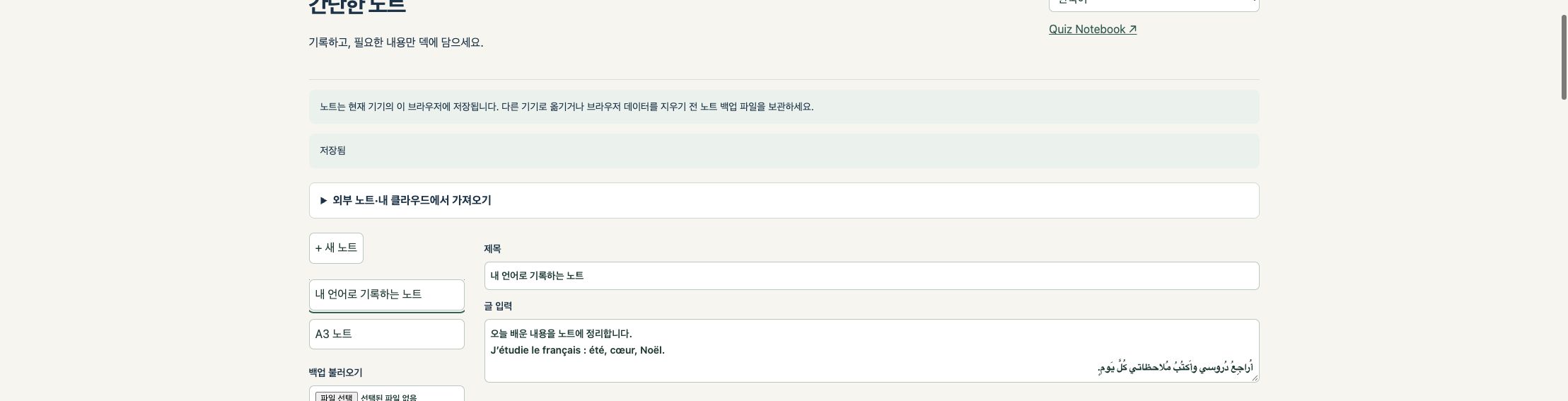
Actual public web interface with original multilingual sample text; not a screenshot of a native app on a device. This screenshot uses Korean. Button labels may differ with your selected language and app version.
Top and left
Below the language selector is guidance on importing from other note apps. On the left you can create a note, open saved notes, restore a backup or import a PDF. Collapse the guidance to make more room for the tools.
Centre and bottom
Below Title and Text are the TXT controls and the pen/paper tools. Scroll below the paper to find Save, Download PDF, Back up note and Connect to a deck.
Return to your study room
Select Quiz Notebook ↗ at the top of web notes. Immediately after saving a card, Open deck takes you to its deck. Save your note before leaving.
Choose your paper before writing. Hide the guide lines when you no longer need them.
For a new note, choose A4, A3 or Letter under Paper. A4 is the default.
Enable Show lines and set Line spacing (mm). The range is 4–20 mm, in 0.5 mm steps.
Write along the guide lines. Turn off Show lines when you want to hide them.
Select Save. PDFs and card images use the current line visibility, so check it before exporting.
Actual paper dimensions
A4: 210 × 297 mm. A3: 297 × 420 mm. Letter: 215.9 × 279.4 mm. On-screen dimensions depend on zoom and display size. Use 100% scale when checking a printout.
Why the paper size may be locked
Once you add pen strokes, a photo or a PDF, the size is fixed. Create a new note first if you need a different size. Hiding the lines does not erase your writing.
Choose Pen, then Thin, Medium or Thick. The colours are black, red, blue, green and yellow. Pen pressure does not change the stroke width.
Highlighter, Eraser and Undo
Highlighter makes a translucent yellow stroke of a fixed width. The five colours and three widths apply to Pen. Eraser removes strokes added in this note; Undo reverses the last drawing action. The eraser does not remove a PDF background or photo. Edit typed text in the Text field.
Attach a photo
Select Attach photo and choose one JPG, PNG or WebP file, no larger than 15 MB and 50 million pixels (50 MP). The image is resized on your device when stored in a note. Keep the original separately. Adding a different photo replaces the current one, so save a backup first.
For advanced handwriting
Use your preferred note app for handwriting recognition, formula conversion or more brushes, then import a PDF or text. Simple notes does not convert handwriting to text or LaTeX.
Save keeps your note in this browser. A backup is a separate file you keep.
After writing, select Save and check for Saved. Do not close the page while it shows unsaved changes.
Before changing devices or clearing browser data, select Back up note.
Find the .qn-note.json file in your Files app or Downloads folder.
On the destination device, open Simple notes, select Restore backup, and choose the file.
Compare the restored title, text, strokes, photo, PDF background and line settings with the original. Keep the original device copy and backup until you finish checking.
What does one backup contain?
Back up note saves only the selected note. It is not a backup of every note or of your study-room decks. Keep a file for each important note. Backups contain the actual note material: avoid public folders and shared links.
What “on this device” means
A different browser or browser profile on the same computer may have a different note library. Private browsing, clearing browser data or resetting the device can remove stored data. Save a backup file first.
Keep a PDF for viewing or printing and a note backup for later editing.
Check the title, text, photo and handwriting. Turn off Show lines if you do not want guide lines.
Select Save, then Download PDF.
Open the saved PDF in another viewer. Check characters, images, handwriting and paper size.
Also select Back up note if you want to edit individual strokes later.
Where do typed text and handwriting appear?
The title and typed body appear first as text pages in the PDF. If the note has strokes, a photo or a PDF background, the paper area follows on a separate page. Typed text is not automatically overlaid on handwriting. Long text can span several pages.
What quality is preserved?
When an imported PDF background is exported again, resources from its original page—including text, vectors and images—are included. Newly typed text, strokes and photos are rendered into the output, so not every element becomes an editable vector.
Keep originals
Photos may be resized, and a PDF background may be scaled to fit the chosen paper. The result is not byte-for-byte identical to the original. Keep original PDFs, photos and editable note backups separately.
Export your first set of notes to PDF, import it again, and add a second layer of writing.
Select Import PDF and choose your file.
Choose the required Page and paper size, then select Import as note.
Check that the original content is visible as a fixed background, then add pen strokes.
The eraser removes only strokes added in this note. Writing already included in the PDF background remains.
Save the first PDF, current note backup and second PDF under separate names.
Import limits
The PDF must be no larger than 20 MB and contain no more than 1,000 pages. Select one page to import. Multiple pages are not automatically combined into one note. Encrypted, damaged or unsupported PDFs may not open.
PDF annotations
The importer currently rejects PDFs that retain annotations, to avoid silently losing them. In your original note app, export a flattened PDF with handwriting and backgrounds included, then import that copy. You can export only the pages you need.
Choose files yourself and keep backups in a location you control.
Export the required notes from Goodnotes, MyScript Notes, OneNote or Evernote as PDF. Check that writing and backgrounds are included.
Use Import PDF in Quiz Notebook and select a file and page. You can add new writing over the PDF; individual strokes from the original app cannot be edited.
Store .qn-note.json backups in Google Drive, iCloud Drive, OneDrive or Dropbox. If your browser saves directly to Downloads, move the file to your cloud folder afterward.
On another device, download or select the cloud file and open it with Restore backup. Available cloud locations depend on installed apps and device settings.
Convert app-specific files first
The importer does not open .one, .goodnotes or .nebo files as editable native notebooks. Use PDF to preserve appearance, TXT for typed text, and .qn-note.json to resume editing a Quiz Notebook note.
No automatic note sync
These notes are not uploaded to our server or automatically synced. To use your own cloud storage, save and select the files yourself. Signing in on another device does not make the notes appear there.
Edit a transcript or copied passage into text you can use for study cards.
Type or paste into Text. Check sentences, numbers and symbols.
Select Save text as .txt. The UTF-8 file contains the title and typed body.
Select Import text file and choose a .txt file. It opens as a new note without overwriting the current one.
The file name becomes the note title, and the full file text becomes the body. If you reimport an exported note, its old title may also appear at the beginning of the body; edit it as needed.
Use Connect to a deck to separate questions and answers, or use the TXT as source material in the Pro personal-AI workbench.
Text limits
The note body is limited to 4,000 characters. An imported TXT must be UTF-8, no larger than 20,000 bytes, and contain no more than 4,000 characters in total. If the exported title and body together exceed the limit, split the text before importing.
What TXT does not contain
Handwriting, photos and PDF backgrounds are not converted to text. TXT import does not perform OCR or generate questions. Split a long transcript, or use its original TXT directly in the Pro AI workbench.
Use device dictation for live input and a separate transcription tool for recordings.
Dictate into a note
Focus the Text field and use the microphone or dictation on your device keyboard. Correct numbers, names, formulas and negations, then save as TXT. Simple notes does not itself record or send audio.
Existing recordings
Simple notes does not directly transcribe .m4a, .mp3 or other audio files. Use MacWhisper, Just Press Record or Clova Note, then copy the transcript or export text for a TXT file.
Companion tools
MacWhisper is the directly distributed Mac app. Its Mac App Store and iPhone/iPad versions are named Whisper Transcription. Just Press Record runs on Mac, iPhone, iPad and Apple Watch; Watch recordings transfer to iPhone for transcription. Clova Note offers PC web, Android and iOS access.
Languages and costs
An interface in 11 languages does not guarantee speech recognition in all 11 languages by an external tool. Check each service’s language support, pricing and online processing. External accounts and fees are not included in a Quiz Notebook purchase.
Keep the deck name, question and answer in their respective fields.
Save your note, then expand Connect to a deck below the paper.
On the web, choose a new or existing deck. The Pro update candidate currently offers a new-deck path for notes.
Enter a Deck name such as “Science review”, a Front: question such as “What is the chemical formula of water?”, and a Back: answer such as “H2O”.
If the note includes handwriting, a photo or a PDF background, its image is added to the question side. Handwriting is not automatically recognised as text.
Read and select the permission checkbox, then select Save as card. When “Card saved to your deck.” appears, select Open deck.
The card and the original
The original note remains. Later changes to the note do not automatically change an already saved card. Check and edit that card separately.
Deck sync and image size
If you save a card to a deck that syncs, that deck’s sync settings may apply. This does not automatically sync your original notes. If the image exceeds the card size limit, saving stops; keep it as a PDF or note backup instead.
Source material → request → AI response → your review and selection → saved deck.
Open the Pro personal-AI workbench, labelled “내 AI로 덱 만들기” (make a deck with your AI) in the Korean interface. First check that your installed version includes it.
Choose a study scope from material you have permission to use, such as TXT or Evernote ENEX text. Keep the source title and reference.
Create a request specifying the question count, difficulty and an example. Submit it yourself to the external AI account you use.
Import the AI’s JSON result in the required format. Compare it with the source, edit questions, answers and explanations, and adopt only the items you want to use (“채택”).
Select “덱으로 저장” (save as deck). In the app, check the saved card count, contents and answers yourself. An AI suggestion does not guarantee a correct answer.
Chat subscriptions and APIs are different
In this Pro workflow, you send the prepared request to your own external AI. It is separate from API connections and commissioned deck creation in the web service. A paid chat subscription does not automatically include API usage.
Personal study and rights
We recommend using AI-assisted materials for personal study. Before publishing, sharing or selling them, check source and output copyright, privacy and service terms. This notice does not grant permission to use protected material.
A work-in-progress backup and a deck ready for study serve different purposes.
Work backup
Use the AI workbench backup to keep source text, requests, AI candidates and review status. To resume, choose the file under “작업 백업 복원” (restore work backup). Store it privately because it may contain sensitive source material.
Finished deck
Save adopted items as a deck, then open it in the app’s set list. Do not assume a work backup automatically restores a study deck. Check the actual card count and content before and after restoring.
Evernote ENEX scope
The AI workbench uses ENEX text. It does not automatically OCR images, scans or attachments. To preserve the appearance of a note, export a PDF and import it into Simple notes.
If it keeps failing
Distinguish a malformed AI result from missing source material or incorrect questions. Keep your files and note the error message and app version. Never post API keys, login codes or entire private source files in a public support request.
A recovery key unlocks encrypted deck sync. It does not contain your notes.
When you need the key
For encrypted deck sync in the web study room, sign in with the same email on another device and enter your existing recovery key. Unlock sync enables that page to use the encrypted deck contents.
First setup and later access
Create a new recovery key only for first-time setup, then select Save recovery key file. Later, paste the existing key or use Load saved recovery key file. Creating a new key is not a way to restore an existing encrypted deck.
Where to keep it
Prefer a password manager or restricted encrypted storage. For a private cloud folder, protect the account and check sharing permissions. Plain email and public or shared folders can expose the readable key to anyone with access. An email login code is not a recovery key.
If the key is lost
The operator does not keep your recovery key. If you lose the key and all devices holding it, server ciphertext alone cannot restore the deck. Keep Simple notes separately in .qn-note.json files: a deck recovery key cannot restore notes.
View, print or import into another note app. Reimporting creates a fixed background; it does not restore individual editable strokes from the original app.
.qn-note.json: keep editing a note
Contains the selected note’s text, strokes, photo, PDF background and line settings. Use Restore backup. Add dates to file names if you keep several versions.
TXT: reuse typed text
Contains only the title and typed body. Photos, handwriting and PDF backgrounds are not transcribed. When importing into notes again, check the 4,000-character total limit.
ENEX, AI work JSON and deck backups
Use ENEX through the AI workbench’s text import, AI work JSON through its work-restore control, and a deck backup through deck restore in the study room or app. Different formats ending in .json are not interchangeable.
Back up your existing files before deleting or overwriting anything.
I cannot find a button
Scroll below the paper for Save and Connect to a deck. If the TXT controls are missing, save your work before refreshing. In an installed app, check whether that feature has been released for your version; use web notes in the meantime.
My notes are missing on another device
Notes stay in the current browser. Export a .qn-note.json backup from the original device and open it with Restore backup on the other device. Signing in does not automatically sync notes.
A PDF or TXT will not import
For a PDF, check size, annotations and encryption; save a flattened copy from the original app. For TXT, check UTF-8 encoding, byte size and the 4,000-character limit. Keep the original and try a small copy first.
Saving failed, or another tab changed the note
Download a note backup before closing the page. If another window saved a newer copy, the app may preserve your current work as a new note. Compare both versions before continuing.
My saved card did not change
The card is a copy made when you saved it. After editing the note, check the card separately. This feature does not automatically split a whole notebook into multiple quiz questions.
Menus, features and release status can change between versions.
Evidence used for this revision
We compared the public note interface with the note, PDF, TXT and deck code, and checked existing tests for original PDF resources, paper sizes and multilingual TXT. This does not guarantee error-free operation for every file or device.
Contact: yseedu@naver.com Include your device, OS, app version, menu and error message. Do not send passwords, API keys, recovery keys or student personal data. The Korean homepage feature finder and manual shortcuts are available. Native Pro packaging, real-device checks and store release remain separate steps.
The detailed Windows and Mac editions retain all 124 exercises. Each integrated PDF includes this guide before the detailed reference.
These 124 exercises use the archived Mac source and existing verification records. Revising the manual does not mean every feature was retested on every Mac device. Check the preceding new features guide and the official store for the new note feature’s release status.
All 124 exercise numbers are retained. Screens and features depend on your installed product and version. The new guide and detailed exercises link to their pages in the combined PDF; PDF bookmarks also provide navigation.
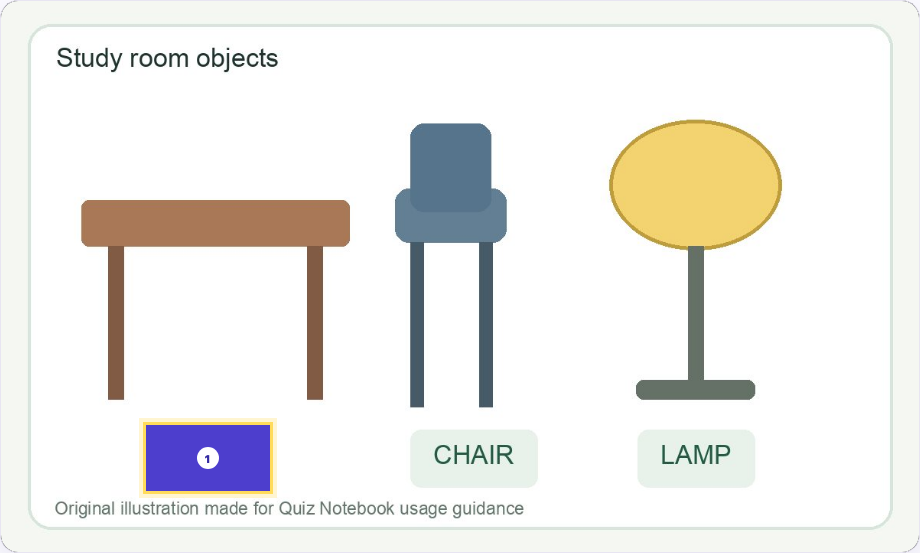
Open set creation on Home and name it Practice_Desk objects.
Enter the three lines below. Each line is one card; | separates the question on the left from the answer on the right.
Choose Save Set, inspect the pre-save check, finish saving, and reopen it in My Sets.
Recall each flashcard answer before turning it over. Finish the session, then save a backup file.
책상 | desk
의자 | chair
공책 | notebook
The Korean prompts mean desk, chair, and notebook. Verify three cards, desk on the back of 책상, retained content after reopening, and the actual backup file. See exercises 007 and 059.
Separate button names from learning concepts
Home / Create / My Sets / Settings
Start / write material / open saved material / preferences and backup
Multiple choice / Matching
Select a correct choice / pair each question and answer
Image occlusion
Hide labels, recall them, then reveal the original image
Distractors / Missed cards
Incorrect choices / questions you answered incorrectly
Draft / Apply / Start / Save
Separate stages to verify in a test room
Prompts can use natural local language, but answer tokens, separators, and formulas should not be automatically translated. Keep desk, chair, notebook, and H2O as shown in the basic examples.
Create a small study set, practise recalling the answers, and save a backup. This is a feature-by-feature guide for Mac.
Try it
Begin with exercise 007, which takes three questions from creation to review.
Find your starting screen: Home, Create, My Sets, or Settings.
Learners can continue with card creation and review; teachers can then read the test chapters.
Use the contents to find a task. You do not need to read the entire book in order.
Example
Today: write three questions → save → study with flashcards → back up. Next: specify distractors → practise multiple choice → review missed cards.
Check the result
Decide what material you will create and which study mode you will try.
Remember
We compared the Mac submission source with existing records of core tasks on a device. This does not certify every feature on every Mac. Publishing a manual is separate from app approval and sales.
If you get stuck
You can start without AI, synchronisation, or a test room. Create and review a personal set first.
Identify the Mac desktop edition and distinguish it from the iPhone and iPad editions.
Try it
Check the official website and Mac App Store for current release and installation availability. A published manual is not confirmation of an app release.
When the app is available, check its name, supported macOS versions, price and purchase conditions in the Mac App Store.
Do not confuse it with the iPhone/iPad editions or Wrongnote Maker.
After installation, open the Mac app from Applications in Finder or from the Dock.
Create and save a small personal set, then reopen the app and check that it is still there.
Check installation, launch and reopening saved material as separate steps.
Remember
Past submissions and review records do not guarantee the current approval or launch status. Check the current availability and conditions displayed in the official store before purchasing.
If you get stuck
Avoid installers from unverified sources. Check the official distribution link rather than disabling security settings.
Check the actual Mac conditions rather than assuming another platform’s trial applies.
Try it
Check the current Mac purchase and trial conditions before buying.
Even if a trial is offered on Windows, do not assume the same conditions apply on Mac.
For a separately issued trial pass, check eligible devices, start and expiry dates, and included features.
Keep important personal material in JSON backups, whether or not a trial is available.
Distinguish the app purchase, separately purchased decks and licences for other operating systems.
Example
Check: Mac edition / trial availability / expiry / backup support / purchasing account.
Check the result
Separate the features you need, those tested successfully, and those still untested.
Remember
This manual does not confirm that a seven-day Mac trial or free-pass issuance is available. Use the current published terms or the instructions for the pass you received.
If you get stuck
Purchase, installation, and restoring your material are separate steps. Verify each one. Do not assume editing or export remains available after trial expiry.
Focus on selected important cards and questions you previously missed.
Try it
Open a set and locate the card-range controls.
All covers the set; Important covers marked cards; Wrong or Missed covers review targets based on recorded mistakes.
Mark an important card and verify it appears in that range.
After a wrong answer, check the missed-card range or review screen.
Afterwards, test the concept again among all cards.
Example
Mark five important words in a 30-word set, then review the three you missed.
Check the result
If the count differs from your expectation, check marks and study records.
Remember
Missed cards are questions the learner answered incorrectly. They are not multiple-choice distractors. Also distinguish this range from cumulative statistics.
If you get stuck
Zero missed cards does not guarantee mastery. Hide the answers and try recalling them.
Compare the correct answer with plausible alternatives.
Try it
Choose multiple choice from the set.
Read the question and, if possible, recall the answer before reading the choices.
Select one choice and inspect the result.
If it was wrong, compare the selected answer with the source to understand why.
Try answering when the choice order changes.
Example
After choosing among notebook, desk, chair, and lamp, explain the meanings of the other words too.
Check the result
Check your understanding of the differences, as well as whether you chose correctly.
Remember
Automatically filled choices depend on the set's contents. Supply distractors for important comparisons and inspect their display.
If you get stuck
If two choices seem correct, examine the question and choices before attributing the result to learner error.
Read the multiple-choice screen
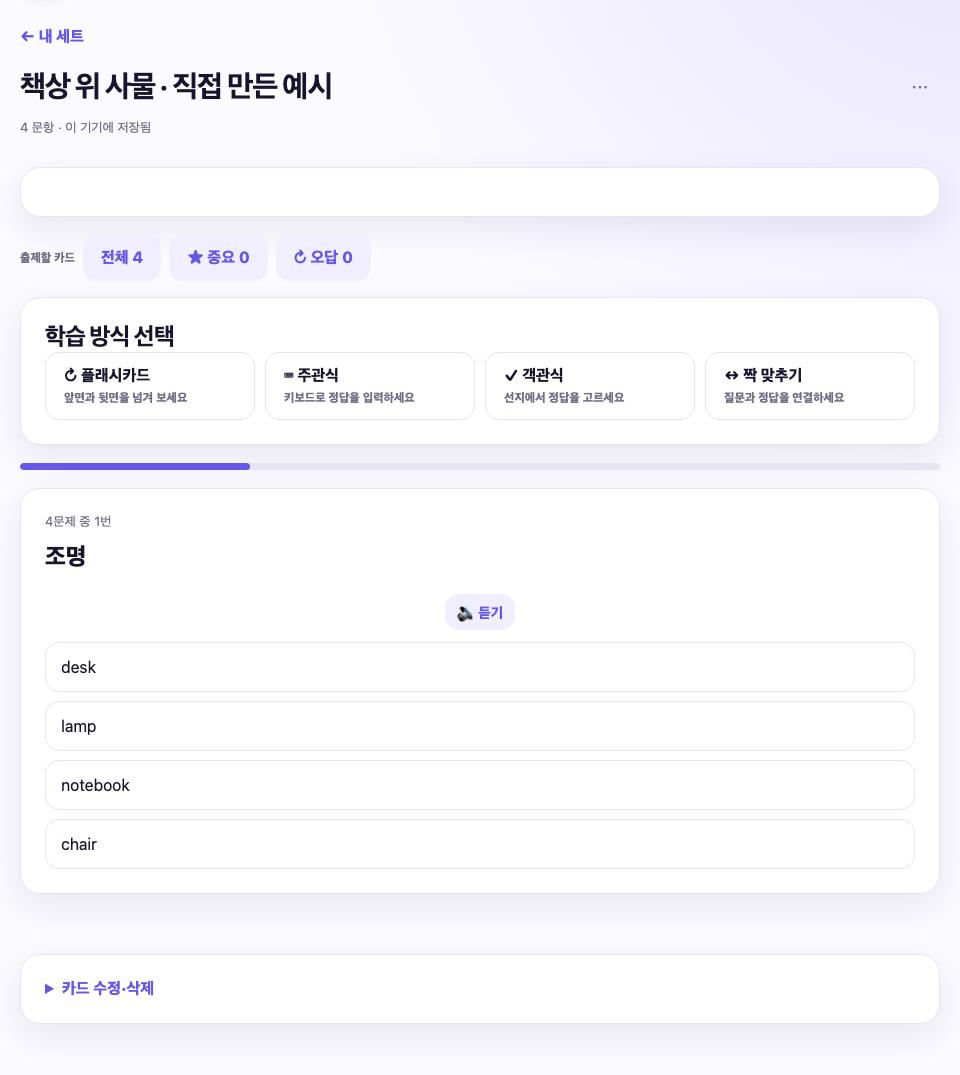
Actual local product-source screen · original practice material · Korean interface. This is not a native installed-Mac device photograph; screens can differ by version.
Select a study mode, then inspect the question and choices.
The prompt means lighting; the answer is lamp. Specific distractors test confusion.
Distinguish all, important, and missed ranges from the current question number.
Connect shuffled questions and their corresponding answers.
Try it
Choose matching from the set.
Select a question and then its answer.
Check completed pairs and remaining items.
Review any incorrect pairing and continue.
Move to the next group or completion screen.
Example
Match prompts for a desk, chair, and notebook with desk, chair, and notebook. Repeated synonymous answers can make pairing ambiguous.
Check the result
Check which pairs were completed and which caused hesitation.
Remember
If several answers are identical, make the questions more specific so each pairing is clear.
If you get stuck
Supported ordinary image cards can also be used, but image occlusion has a different study method.
Read the matching screen
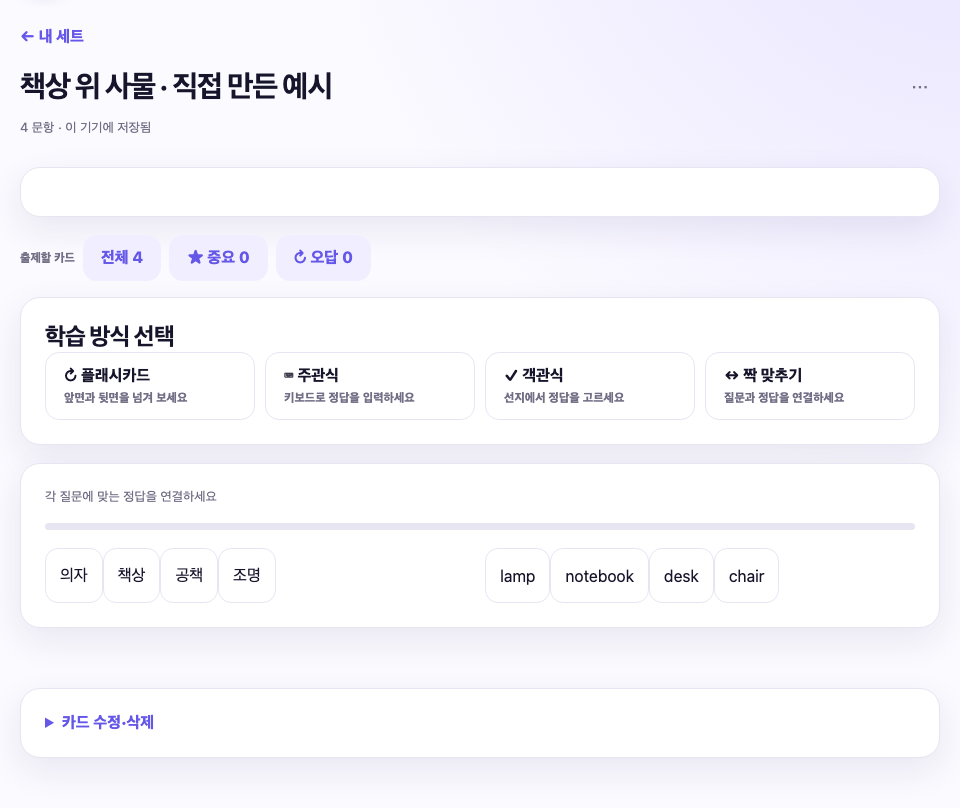
Actual local product-source screen · original practice material · Korean interface. This is not a native installed-Mac device photograph; screens can differ by version.
Select a question on the left and its answer on the right.
These are four original object-name pairs. Check that answers are distinguishable.
After quick matching, hide answers and see whether you can recall them.
Correct painted boundaries and select a suitable input mode.
Try it
Select the control for erasing part of a brush mask.
Stroke over unwanted paint to reveal only the required image area.
Use Undo to reverse a whole operation.
Use a mouse or trackpad on Mac. If you connect a separate pen device, first check how its input is recognised.
Before saving, check that the answer remains fully hidden.
Example
Erase paint beyond a boundary to reveal surrounding detail while keeping the answer covered.
Check the result
Confirm that you changed the mask rather than erased the original image.
Remember
This does not mean Apple Pencil works directly on an ordinary Mac display. A connected drawing tablet’s pen and pressure support depends on the device and connection.
If you get stuck
If the mouse stops responding in pen-only mode, check the selected input mode.
Adjust visible clues and difficulty to your learning purpose.
Try it
In hide-all mode, recall the current answer while other labels are hidden too.
In hide-one mode, use the surrounding visible labels as clues.
For a new diagram, begin with enough context to understand its relationships.
As you become familiar with it, reduce clues and test recall again.
After saving, verify the selected mode in the study screen.
Example
Learning one city's position and recalling every city name require different amounts of context.
Check the result
Check exactly which parts are hidden and visible in each mode.
Remember
More masks do not automatically improve learning. Keep the question understandable.
If you get stuck
Region names are optional, but short names make several masks easier to manage.
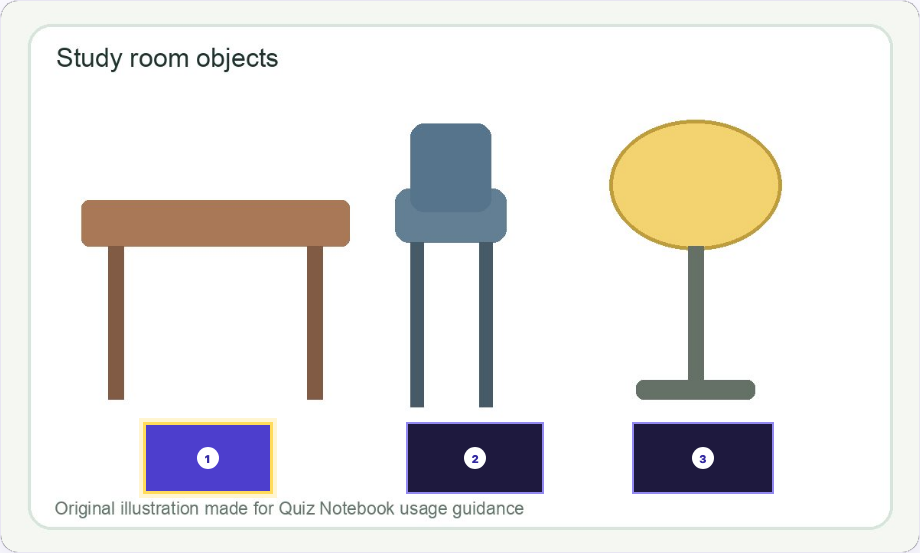
One diagram, different clues
A Hide all; answer one region at a time
Recall the current region while other labels remain hidden.
B Hide one region; keep surrounding clues
Keep surrounding names as clues while focusing on the current region.
Actual local product-source screen · original practice material · Korean interface. This is not a native installed-Mac device photograph; screens can differ by version.PDF 83
048 · Reveal and review a hidden answer
Purpose
Recall first, then check the image and record your own recall accurately.
Try it
Open the saved image-occlusion set.
Identify the current region's question and answer it before revealing.
Use the mask or reveal control to view the original answer.
If self-rating is offered, choose the option matching certainty, hesitation, or an error.
Hide it again or move to the next region, then finish the session.
Example
Distinguish recalling only after seeing the answer from answering independently beforehand.
Check the result
Confirm that hidden text does not show through and becomes readable after revealing.
Remember
Self-rating differs from automatic multiple-choice marking. Moving to the next region does not establish prior knowledge.
If you get stuck
Hide the answer again to check whether your next response depends only on just having read it.
050 · Practise the complete image-occlusion workflow
Purpose
Create, edit, and review a simple diagram of your own.
Try it
Draw a triangle, square, and circle and write each shape's name.
Open that image and decide where to cover each label.
Use rectangles for two labels and a brush for one; confirm the brush region.
Save and study both hide-all and hide-one versions.
Change one region, reopen the set, and inspect the result.
Example
Checklist: three regions; original image visible; answers hidden; answers revealed correctly; edits saved.
Check the result
Verify both that controls worked and that the masks covered the correct content.
Remember
If moving fails, check movement mode; if drawing fails, check the drawing tool; if brush marks are missing, check region confirmation.
If you get stuck
Medicine, geography, and circuits use the same sequence: select a region → recall first → check the original. Adapt the visible context to the material.
Read automatic-sync scope and check status on Home or My Sets after study or edits.
Example
Sync an English set while leaving sensitive personal notes unselected.
Check the result
On the receiving device, verify card content, images, and study position separately.
Remember
Selected data is sent to the sync server. Official paid-content bodies and purchase entitlements are not transferred through this material sync. Check the receiving device.
If you get stuck
New sets are not necessarily selected automatically. Check selection and account if a set is missing.
Match the testing workflow to the number of participants and teaching method.
Try it
Choose one-to-one testing when teacher and learner use one screen.
Check the test-room feature when learners submit from their own browsers.
Distinguish both from personally studying several sets together.
Decide the teaching purpose and result-storage method, then rehearse with practice names.
Example
Use one-to-one testing when the teacher hears and marks oral answers; use a room with admission and answer submission for five independent participants.
Check the result
Identify who enters answers, who marks them, and where results are stored.
Remember
Opening these features does not establish an external-network video call.
If you get stuck
If showing the host screen, check whether it exposes answers to learners.
112 · Choose your own AI service and understand its cost
Purpose
Review both external-AI charges and the content you send.
Try it
Use ordinary study and basic text checks without connecting an API.
If you want AI help, you may copy selected text into the AI service you already use.
For an in-app API feature, check its supported provider and your own account's charges and limits.
Enter API keys only in the designated protected field and inspect the outgoing text before running a request.
Example
Ask your own AI to suggest questions in “question | correct answer” format, then import only content you have checked.
Check the result
Know whose account is used, which service receives the request, and exactly what is sent.
Remember
Quiz Notebook's purchase price does not include external AI fees. Your service contract, charges, and limits apply; chat subscriptions and API billing are separate. Saving a key does not establish free use or account availability.
If you get stuck
Remove personal information and select only necessary content. The copy-and-request method needs no API key.
Select and edit the suggestions you want in your own material.
Try it
In a supported in-app feature, open the relevant draft and inspect provider, model, and outgoing content.
When using an external AI yourself, supply the necessary source and required output format.
Check facts, answers, missing conditions, and alignment with your study range.
Choose useful suggestions, correct them, and save. Verify receipt and saving separately.
Investigate authentication, limits, and model errors before repeating chargeable requests.
Example
An AI suggestion to send an email does not send it. You also decide which learning suggestions to adopt and correct.
Check the result
Distinguish submitted content, received candidates, adopted material, and saved state.
Remember
Cancelling the wait may not prevent charges for a processed request. Verify availability of a candidate-review interface in the actual public edition separately.
If you get stuck
Ordinary study can continue without an API. Match pasted text and imported files to formats your edition supports.
Begin with manageable actions, including when computers are unfamiliar.
Try it
On day one, check readability and create only three questions.
The following day, reopen the set and recall answers with flashcards.
Correct one confusing card and mark an important one.
Compare multiple choice and matching and choose what suits you.
Back up and inspect the file; add image-based study when comfortable.
Example
Practise reopening yesterday's material before trying to learn every menu. Allow the learner time to operate the app even when helping.
Check the result
Try creating, saving, reopening, reviewing, and backing up at your own pace.
Remember
This schedule is an adjustable suggestion. Age alone does not determine computer ability.
If you get stuck
If text is too small, adjust macOS display scaling and check that buttons and windows remain visible. Do not assume the app has a separate zoom control.
Provide reproducible information without exposing secrets.
Try it
Enter the product name, macOS version, app version, and build number.
Describe the screen and steps in order.
Separate the expected result from what actually happened.
Record the exact error and attach only the necessary image area.
If possible, reproduce with a small original example without personal information.
Example
Example: “Mac edition / My Sets → multiple choice / 3 cards / only 3 choices on question 2 / a distractor duplicated the correct answer.” These details help narrow down the cause.
Check the result
Check that another person can follow the steps without seeing your whole screen.
Remember
Do not send passwords, API keys, or certificate private keys. Redact learner names and scores when unnecessary.
If you get stuck
Official information: https://quiznotebook.com/ — Support: support@quiznotebook.com. Include the exercise number if the manual differs from your screen.
Keep these concepts distinct
Set and deck
A saved collection of questions and answers or image-occlusion material. Supported formats differ by study mode.
Distractors and missed cards
A distractor is an incorrect multiple-choice option. A missed card is a question recorded as answered incorrectly.
Backup and restore
A backup preserves a copy in a file. After restoration, compare content and images as well as counts.
Record sharing and material sync
Sharing records alone does not transfer card bodies. For material sync, check the account and selected scope.
LAN and HTTPS
LAN connects a private network; HTTPS encrypts a connection. Addresses, server certificates, and participant trust must match.
OCR and AI suggestions
OCR assists text entry; AI proposes candidates for review. Check source and answer before adopting either result.
Revision and verification scope
This revision
The new notes, PDF, TXT, external voice tools and deck workflow guide has been added. Findings from Claude’s independent review of the Korean content were corrected. All 18 chapters, 124 exercises and original examples and diagrams are retained.
Screenshots and document checks
Examples were written for this guide. Screenshots come from running the product source; they are not proof of every native installation. Text, translation, contents, links and PDF layout are checked as document artifacts.
Separate checks still required
This revision does not newly verify all Mac installer features, real purchases and restores, printers, classroom HTTPS connections, or every OS/device combination. The standard phone, dedicated tablet and Wrongnote Maker editions have different scopes.
Publication and rights
YSEEDU · Quiz Notebook | 6 October 2026. Original examples and diagrams. Nanum Gothic and Noto Sans JP use SIL OFL 1.1; DejaVu Sans uses its own font licence. Licence texts are attached to the PDF and linked from the manual library.
 Quiz Notebook