English revision · 6 October 2026
Web app and Pro: new features guide
Download PDF · 20 pagesSearch section titles and instructions.
01 · From notes to study cards
Write a note, turn the points you need into cards, and practise recalling the answers.
About this revision
This guide covers Simple notes, PDF and TXT files, external note and voice tools, decks and backups. Each procedure tells you what to click and what to check afterward.
Start here
Homepage: https://quiznotebook.com/ko/
The Korean homepage has a feature finder and a Simple notes shortcut. You can also open notes directly and choose English in the language selector.
Notes: https://quiznotebook.com/webapp/notes/?lang=en
Study room: https://quiznotebook.com/webapp/
Where to begin
Try the short exercise on page 3. For handwriting, start on pages 5–6; for PDFs, pages 8–10; for text and voice, pages 11–12; and for cards and AI-assisted decks, pages 13–15.
Scope and date
Revised against the web implementation and public guidance checked on 6 October 2026. The Windows and Mac editions each continue with 124 detailed exercises after this new features guide. Available menus depend on the version you have installed.
02 · Where can I use these features?
A feature described in a manual may not yet be available in every store version.
Public web app
The public Simple notes interface supports pens, a highlighter, an eraser, PDF and TXT import/export, and cards made from notes. Notes stay in this browser on this device.
Windows, Mac, iPad and Android tablet Pro
The note feature has been integrated into candidate source builds for these four platforms. Full testing of the new installers on real devices and store distribution were not complete at the time of this revision. If your installed app has no note menu, use the public web app.
The existing personal-AI workbench
The ENEX/text workflow in versions with the personal-AI workbench is separate from the new Simple notes feature. Check your installed version for availability. The Pro candidate adds note entry buttons to Home, Create and My Sets.
What this guide does not verify
This update does not add the note feature to the standard phone edition. Browser checks do not establish that Apple Pencil, S Pen or every device’s file picker has been tested.
03 · First five minutes: one note, one card
A deck is a collection of study questions and answers.
- In Simple notes, select “+ New note”. Enter “Water review” in Title.
- In Text, enter “The chemical formula of water is H2O.” Select Save below the paper and look for Saved.
- Expand Connect to a deck. Select Create a new deck and enter “Science review” as the Deck name.
- Set Front: question to “What is the chemical formula of water?” and Back: answer to “H2O”. Check the fields even if the note title and text were filled in automatically.
- Read and select the permission checkbox, then select Save as card.
- Select Open deck to open it in the study room. Try to recall the answer before revealing it.
- Return to the note, select Back up note, and check that the file was actually saved.
Check your result
Confirm the note title is “Water review”, the deck is “Science review”, the question asks for the formula of water, and the answer is “H2O”.
04 · Find your way around the screen
The text fields, paper area and Save button have different roles.
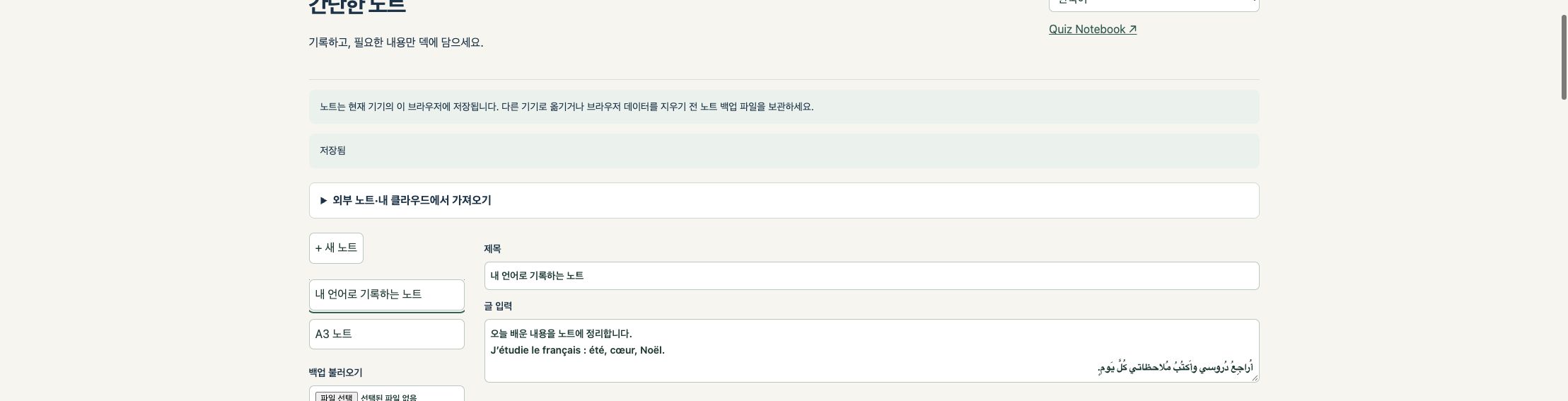
Top and left
Below the language selector is guidance on importing from other note apps. On the left you can create a note, open saved notes, restore a backup or import a PDF. Collapse the guidance to make more room for the tools.
Centre and bottom
Below Title and Text are the TXT controls and the pen/paper tools. Scroll below the paper to find Save, Download PDF, Back up note and Connect to a deck.
Return to your study room
Select Quiz Notebook ↗ at the top of web notes. Immediately after saving a card, Open deck takes you to its deck. Save your note before leaving.
05 · Choose paper size and line spacing
Choose your paper before writing. Hide the guide lines when you no longer need them.
- For a new note, choose A4, A3 or Letter under Paper. A4 is the default.
- Enable Show lines and set Line spacing (mm). The range is 4–20 mm, in 0.5 mm steps.
- Write along the guide lines. Turn off Show lines when you want to hide them.
- Select Save. PDFs and card images use the current line visibility, so check it before exporting.
Actual paper dimensions
A4: 210 × 297 mm. A3: 297 × 420 mm. Letter: 215.9 × 279.4 mm. On-screen dimensions depend on zoom and display size. Use 100% scale when checking a printout.
Why the paper size may be locked
Once you add pen strokes, a photo or a PDF, the size is fixed. Create a new note first if you need a different size. Hiding the lines does not erase your writing.
06 · Pens, highlighter, eraser and photos
Use a small set of tools for simple annotations.
Pen colour and thickness
Choose Pen, then Thin, Medium or Thick. The colours are black, red, blue, green and yellow. Pen pressure does not change the stroke width.
Highlighter, Eraser and Undo
Highlighter makes a translucent yellow stroke of a fixed width. The five colours and three widths apply to Pen. Eraser removes strokes added in this note; Undo reverses the last drawing action. The eraser does not remove a PDF background or photo. Edit typed text in the Text field.
Attach a photo
Select Attach photo and choose one JPG, PNG or WebP file, no larger than 15 MB and 50 million pixels (50 MP). The image is resized on your device when stored in a note. Keep the original separately. Adding a different photo replaces the current one, so save a backup first.
For advanced handwriting
Use your preferred note app for handwriting recognition, formula conversion or more brushes, then import a PDF or text. Simple notes does not convert handwriting to text or LaTeX.
07 · Save versus Back up note
Save keeps your note in this browser. A backup is a separate file you keep.
- After writing, select Save and check for Saved. Do not close the page while it shows unsaved changes.
- Before changing devices or clearing browser data, select Back up note.
- Find the .qn-note.json file in your Files app or Downloads folder.
- On the destination device, open Simple notes, select Restore backup, and choose the file.
- Compare the restored title, text, strokes, photo, PDF background and line settings with the original. Keep the original device copy and backup until you finish checking.
What does one backup contain?
Back up note saves only the selected note. It is not a backup of every note or of your study-room decks. Keep a file for each important note. Backups contain the actual note material: avoid public folders and shared links.
What “on this device” means
A different browser or browser profile on the same computer may have a different note library. Private browsing, clearing browser data or resetting the device can remove stored data. Save a backup file first.
08 · Export your finished note as a PDF
Keep a PDF for viewing or printing and a note backup for later editing.
- Check the title, text, photo and handwriting. Turn off Show lines if you do not want guide lines.
- Select Save, then Download PDF.
- Open the saved PDF in another viewer. Check characters, images, handwriting and paper size.
- Also select Back up note if you want to edit individual strokes later.
Where do typed text and handwriting appear?
The title and typed body appear first as text pages in the PDF. If the note has strokes, a photo or a PDF background, the paper area follows on a separate page. Typed text is not automatically overlaid on handwriting. Long text can span several pages.
What quality is preserved?
When an imported PDF background is exported again, resources from its original page—including text, vectors and images—are included. Newly typed text, strokes and photos are rendered into the output, so not every element becomes an editable vector.
Keep originals
Photos may be resized, and a PDF background may be scaled to fit the chosen paper. The result is not byte-for-byte identical to the original. Keep original PDFs, photos and editable note backups separately.
09 · Use a PDF as a fixed background
Export your first set of notes to PDF, import it again, and add a second layer of writing.
- Select Import PDF and choose your file.
- Choose the required Page and paper size, then select Import as note.
- Check that the original content is visible as a fixed background, then add pen strokes.
- The eraser removes only strokes added in this note. Writing already included in the PDF background remains.
- Save the first PDF, current note backup and second PDF under separate names.
Import limits
The PDF must be no larger than 20 MB and contain no more than 1,000 pages. Select one page to import. Multiple pages are not automatically combined into one note. Encrypted, damaged or unsupported PDFs may not open.
PDF annotations
The importer currently rejects PDFs that retain annotations, to avoid silently losing them. In your original note app, export a flattened PDF with handwriting and backgrounds included, then import that copy. You can export only the pages you need.
10 · Other note apps and your own cloud storage
Choose files yourself and keep backups in a location you control.
- Export the required notes from Goodnotes, MyScript Notes, OneNote or Evernote as PDF. Check that writing and backgrounds are included.
- Use Import PDF in Quiz Notebook and select a file and page. You can add new writing over the PDF; individual strokes from the original app cannot be edited.
- Store .qn-note.json backups in Google Drive, iCloud Drive, OneDrive or Dropbox. If your browser saves directly to Downloads, move the file to your cloud folder afterward.
- On another device, download or select the cloud file and open it with Restore backup. Available cloud locations depend on installed apps and device settings.
Convert app-specific files first
The importer does not open .one, .goodnotes or .nebo files as editable native notebooks. Use PDF to preserve appearance, TXT for typed text, and .qn-note.json to resume editing a Quiz Notebook note.
No automatic note sync
These notes are not uploaded to our server or automatically synced. To use your own cloud storage, save and select the files yourself. Signing in on another device does not make the notes appear there.
11 · Save text as TXT and import it again
Edit a transcript or copied passage into text you can use for study cards.
- Type or paste into Text. Check sentences, numbers and symbols.
- Select Save text as .txt. The UTF-8 file contains the title and typed body.
- Select Import text file and choose a .txt file. It opens as a new note without overwriting the current one.
- The file name becomes the note title, and the full file text becomes the body. If you reimport an exported note, its old title may also appear at the beginning of the body; edit it as needed.
- Use Connect to a deck to separate questions and answers, or use the TXT as source material in the Pro personal-AI workbench.
Text limits
The note body is limited to 4,000 characters. An imported TXT must be UTF-8, no larger than 20,000 bytes, and contain no more than 4,000 characters in total. If the exported title and body together exceed the limit, split the text before importing.
What TXT does not contain
Handwriting, photos and PDF backgrounds are not converted to text. TXT import does not perform OCR or generate questions. Split a long transcript, or use its original TXT directly in the Pro AI workbench.
12 · Turn speech into text
Use device dictation for live input and a separate transcription tool for recordings.
Dictate into a note
Focus the Text field and use the microphone or dictation on your device keyboard. Correct numbers, names, formulas and negations, then save as TXT. Simple notes does not itself record or send audio.
Existing recordings
Simple notes does not directly transcribe .m4a, .mp3 or other audio files. Use MacWhisper, Just Press Record or Clova Note, then copy the transcript or export text for a TXT file.
Companion tools
MacWhisper is the directly distributed Mac app. Its Mac App Store and iPhone/iPad versions are named Whisper Transcription. Just Press Record runs on Mac, iPhone, iPad and Apple Watch; Watch recordings transfer to iPhone for transcription. Clova Note offers PC web, Android and iOS access.
Languages and costs
An interface in 11 languages does not guarantee speech recognition in all 11 languages by an external tool. Check each service’s language support, pricing and online processing. External accounts and fees are not included in a Quiz Notebook purchase.
13 · Turn a note into a study card
Keep the deck name, question and answer in their respective fields.
- Save your note, then expand Connect to a deck below the paper.
- On the web, choose a new or existing deck. The Pro update candidate currently offers a new-deck path for notes.
- Enter a Deck name such as “Science review”, a Front: question such as “What is the chemical formula of water?”, and a Back: answer such as “H2O”.
- If the note includes handwriting, a photo or a PDF background, its image is added to the question side. Handwriting is not automatically recognised as text.
- Read and select the permission checkbox, then select Save as card. When “Card saved to your deck.” appears, select Open deck.
The card and the original
The original note remains. Later changes to the note do not automatically change an already saved card. Check and edit that card separately.
Deck sync and image size
If you save a card to a deck that syncs, that deck’s sync settings may apply. This does not automatically sync your original notes. If the image exceeds the card size limit, saving stops; keep it as a PDF or note backup instead.
14 · Use your AI to propose questions
Source material → request → AI response → your review and selection → saved deck.
- Open the Pro personal-AI workbench, labelled “내 AI로 덱 만들기” (make a deck with your AI) in the Korean interface. First check that your installed version includes it.
- Choose a study scope from material you have permission to use, such as TXT or Evernote ENEX text. Keep the source title and reference.
- Create a request specifying the question count, difficulty and an example. Submit it yourself to the external AI account you use.
- Import the AI’s JSON result in the required format. Compare it with the source, edit questions, answers and explanations, and adopt only the items you want to use (“채택”).
- Select “덱으로 저장” (save as deck). In the app, check the saved card count, contents and answers yourself. An AI suggestion does not guarantee a correct answer.
Chat subscriptions and APIs are different
In this Pro workflow, you send the prepared request to your own external AI. It is separate from API connections and commissioned deck creation in the web service. A paid chat subscription does not automatically include API usage.
Personal study and rights
We recommend using AI-assisted materials for personal study. Before publishing, sharing or selling them, check source and output copyright, privacy and service terms. This notice does not grant permission to use protected material.
15 · AI work backups and finished decks
A work-in-progress backup and a deck ready for study serve different purposes.
Work backup
Use the AI workbench backup to keep source text, requests, AI candidates and review status. To resume, choose the file under “작업 백업 복원” (restore work backup). Store it privately because it may contain sensitive source material.
Finished deck
Save adopted items as a deck, then open it in the app’s set list. Do not assume a work backup automatically restores a study deck. Check the actual card count and content before and after restoring.
Evernote ENEX scope
The AI workbench uses ENEX text. It does not automatically OCR images, scans or attachments. To preserve the appearance of a note, export a PDF and import it into Simple notes.
If it keeps failing
Distinguish a malformed AI result from missing source material or incorrect questions. Keep your files and note the error message and app version. Never post API keys, login codes or entire private source files in a public support request.
16 · Deck recovery keys versus note backups
A recovery key unlocks encrypted deck sync. It does not contain your notes.
When you need the key
For encrypted deck sync in the web study room, sign in with the same email on another device and enter your existing recovery key. Unlock sync enables that page to use the encrypted deck contents.
First setup and later access
Create a new recovery key only for first-time setup, then select Save recovery key file. Later, paste the existing key or use Load saved recovery key file. Creating a new key is not a way to restore an existing encrypted deck.
Where to keep it
Prefer a password manager or restricted encrypted storage. For a private cloud folder, protect the account and check sharing permissions. Plain email and public or shared folders can expose the readable key to anyone with access. An email login code is not a recovery key.
If the key is lost
The operator does not keep your recovery key. If you lose the key and all devices holding it, server ciphertext alone cannot restore the deck. Keep Simple notes separately in .qn-note.json files: a deck recovery key cannot restore notes.
17 · Which file should I keep or reopen?
Choose the format that matches your next task.
PDF: preserve appearance and annotate again
View, print or import into another note app. Reimporting creates a fixed background; it does not restore individual editable strokes from the original app.
.qn-note.json: keep editing a note
Contains the selected note’s text, strokes, photo, PDF background and line settings. Use Restore backup. Add dates to file names if you keep several versions.
TXT: reuse typed text
Contains only the title and typed body. Photos, handwriting and PDF backgrounds are not transcribed. When importing into notes again, check the 4,000-character total limit.
ENEX, AI work JSON and deck backups
Use ENEX through the AI workbench’s text import, AI work JSON through its work-restore control, and a deck backup through deck restore in the study room or app. Different formats ending in .json are not interchangeable.
18 · If something does not work
Back up your existing files before deleting or overwriting anything.
I cannot find a button
Scroll below the paper for Save and Connect to a deck. If the TXT controls are missing, save your work before refreshing. In an installed app, check whether that feature has been released for your version; use web notes in the meantime.
My notes are missing on another device
Notes stay in the current browser. Export a .qn-note.json backup from the original device and open it with Restore backup on the other device. Signing in does not automatically sync notes.
A PDF or TXT will not import
For a PDF, check size, annotations and encryption; save a flattened copy from the original app. For TXT, check UTF-8 encoding, byte size and the 4,000-character limit. Keep the original and try a small copy first.
Saving failed, or another tab changed the note
Download a note backup before closing the page. If another window saved a newer copy, the app may preserve your current work as a new note. Compare both versions before continuing.
My saved card did not change
The card is a copy made when you saved it. After editing the note, check the card separately. This feature does not automatically split a whole notebook into multiple quiz questions.
19 · Check before moving on
A file being saved and its contents being correct are separate checks.
- Note: Saved is shown, and the title, text and handwriting remain after reopening.
- Paper: The chosen A4, A3 or Letter size and line visibility are correct.
- PDF: Another viewer displays the handwriting, images and source text. You can reimport the exported page.
- TXT: Characters and special symbols display correctly, with the intended title and body.
- Backup: The .qn-note.json file exists where you saved it and can be restored as a new note for comparison.
- Deck: The name, question and answer are in the correct fields. Hide the answer and practise recalling it.
- Rights and storage: You are permitted to use the material and know where the originals and private backups are kept.
Notes support learning
A well-written note does not automatically make a good quiz. Ask one focused question and practise recalling the answer before revealing it.
Start small
Begin with one short passage you wrote and one card. Confirm saving and restoring on your own device before working with larger materials.
20 · Help and revision notes
Menus, features and release status can change between versions.
Evidence used for this revision
We compared the public note interface with the note, PDF, TXT and deck code, and checked existing tests for original PDF resources, paper sizes and multilingual TXT. This does not guarantee error-free operation for every file or device.
Related guides
Note apps: https://quiznotebook.com/guides/note-apps/en/
AI subscriptions and APIs: https://quiznotebook.com/guides/ai-api/en/
Manual library: https://quiznotebook.com/manuals/en/
Release and purchase information: https://quiznotebook.com/about/en/
Official third-party information
MacWhisper: https://macwhisper.com
Just Press Record: https://www.openplanetsoftware.com/just-press-record/
Clova Note: https://clovanote.naver.com
The note-app guide links to official PDF guidance for Goodnotes, MyScript Notes, OneNote and Evernote. Mentioning these tools does not imply a partnership or guarantee.
Contact and later revisions
Contact: yseedu@naver.com
Include your device, OS, app version, menu and error message. Do not send passwords, API keys, recovery keys or student personal data. The Korean homepage feature finder and manual shortcuts are available. Native Pro packaging, real-device checks and store release remain separate steps.
The detailed Windows and Mac editions retain all 124 exercises. Each integrated PDF includes this guide before the detailed reference.